> ## Documentation Index
> Fetch the complete documentation index at: https://docs.cantina.xyz/llms.txt
> Use this file to discover all available pages before exploring further.
# Client onboarding guide
> How repository access works, what Apex needs during setup, and what to send before the first scan.
* **Read:** 8 min
* **Updated:** Apr 28, 2026
* **Audience:** Workspace owners
## § 01 What onboarding looks like
Apex does not need personal access from every engineer. GitHub usually connects through a GitHub App. GitLab supports OAuth or a service-account token. Connecting a provider unlocks repository import - teams still choose repos, refs, and docs before scans run.
1. **Connect a code host** - Done once per company or workspace.
2. **Create a workspace** - Choose the exact repositories in scope.
3. **Pick a ref for each repository** - Branch, pull request, or commit.
4. **Add supporting context** - Docs, API specs, architecture notes, sharp edges.
5. **Run the scan** - Only after scope and context look right.
## § 02 Why Apex needs access
* Show repositories available to the connected company or workspace.
* Load branches, pull requests, commits, and repository trees during workspace setup.
* Pull selected source at the exact ref chosen for a scan.
* Keep private repositories in scope without asking users to package or upload code manually.
## § 03 GitHub onboarding
* Apex starts a GitHub App installation flow.
* An organization owner or repository admin may need to approve the installation.
* After installation, the team still chooses exact repositories per workspace.
* If approval is pending, workspace setup can continue and reconnect once approved.
*Workspace setup - connect options*
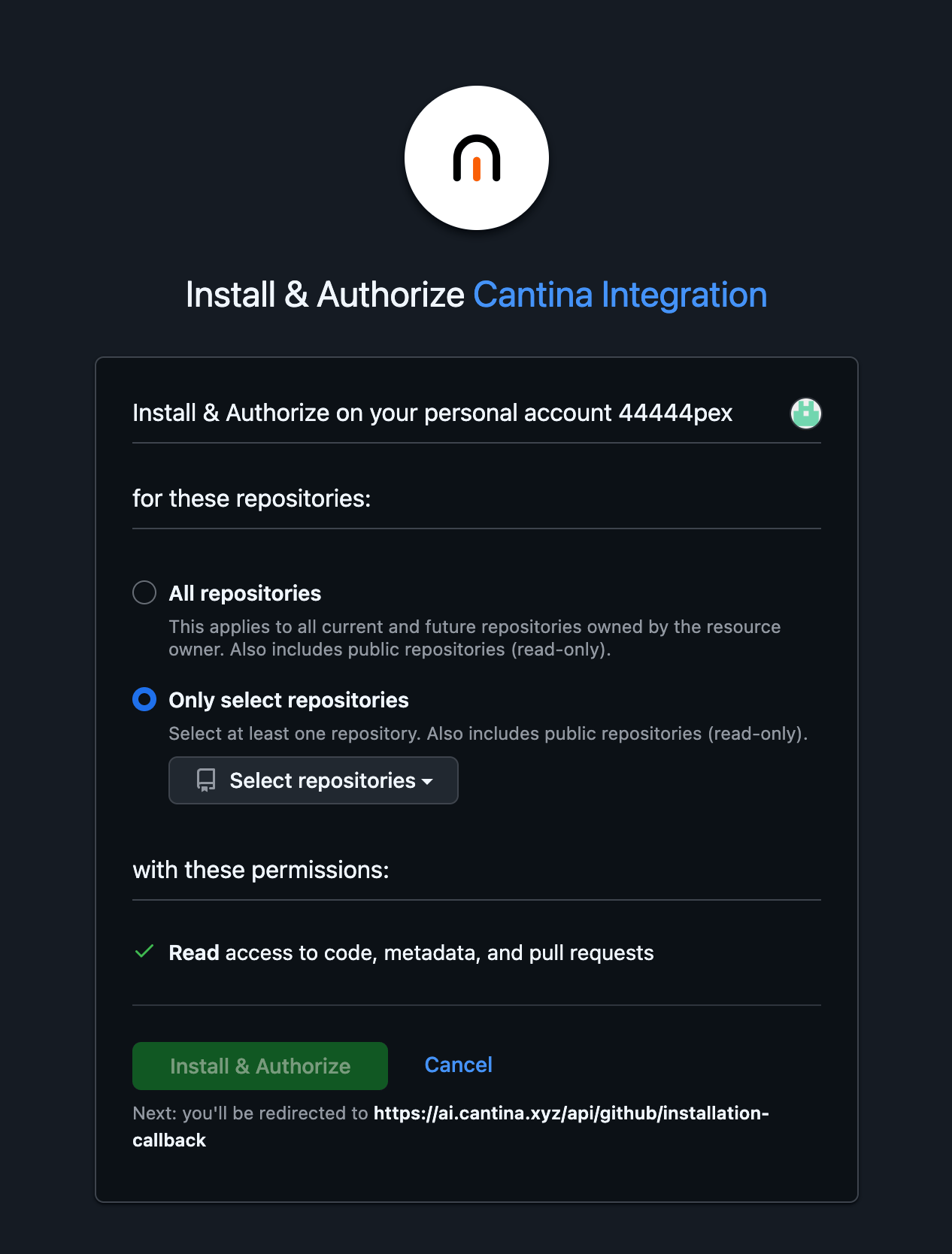 *GitHub App authorization screen*
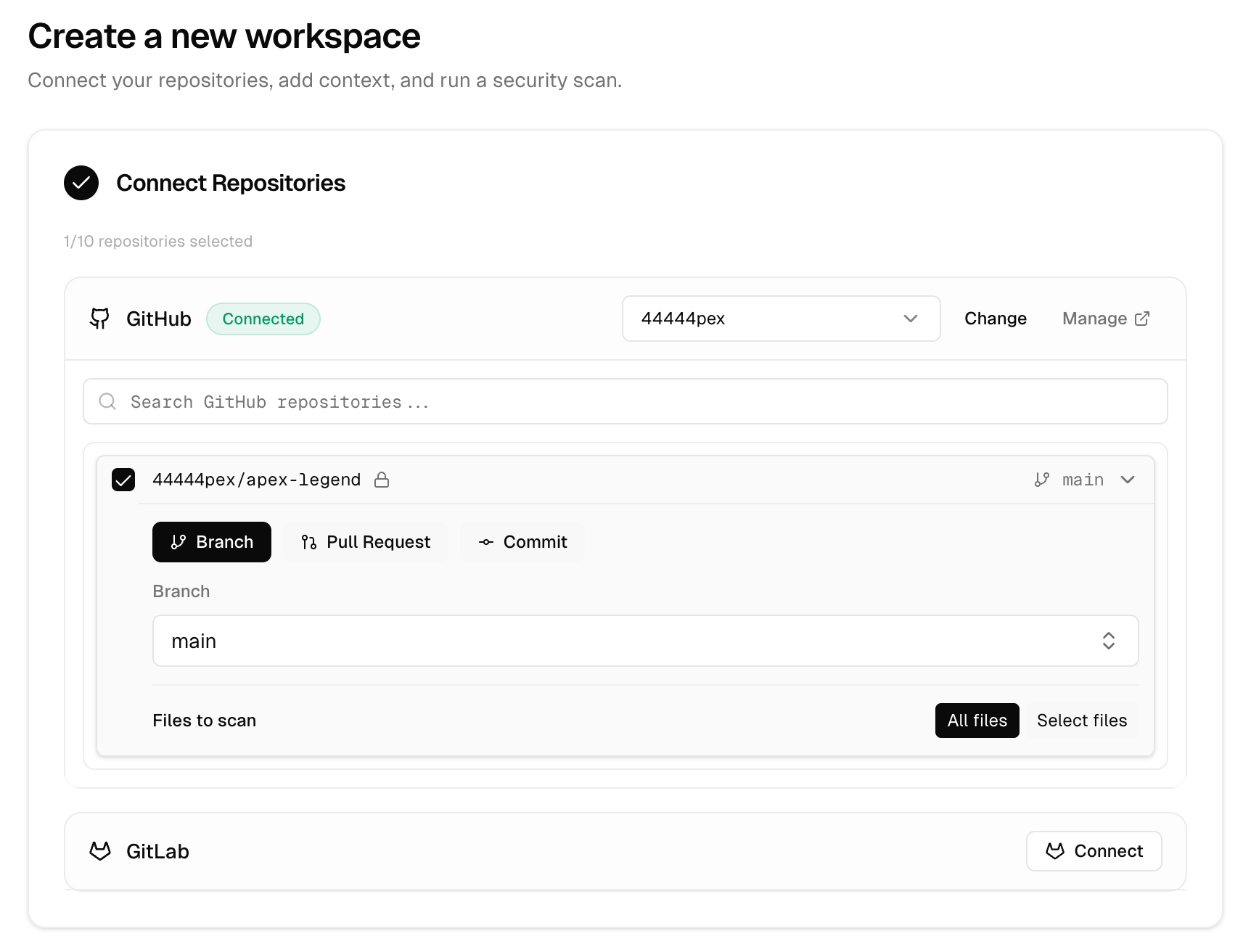 *Workspace setup after GitHub is connected*
## § 04 GitLab onboarding
* [GitLab.com](http://GitLab.com) connects through the shared OAuth app.
* Self-hosted GitLab can connect through OAuth or token setup.
* Token setup accepts a personal access token or service-account token with API scope.
* A service-account token is the recommended default over an individual engineer token.
## § 05 What to send ahead
Send these before kickoff and the first workspace usually takes minutes, not days.
* Provider: GitHub, [GitLab.com](http://GitLab.com), or self-hosted GitLab.
* Organization, account, or group owner - plus the person who can approve the connection.
* Repositories in scope and expected default branches, pull requests, or commits.
* Documentation: architecture, permissions, trust boundaries, key integrations, deployment shape.
* Priority-shaping context: sharp edges, sensitive flows, threat-model constraints, bug classes that matter.
## § 06 FAQ
**Does Apex need personal access to every codebase?**
No. Provider connections happen once at the company or workspace level.
**Does connecting a provider start a scan?**
No. You still pick repositories, refs, and context first.
**What if GitHub App approval is pending?**
Workspace setup can continue. Reconnect after approval lands.
**Can scope be limited?**
Yes - to selected repositories and specific refs (branch, PR, or commit).
*Workspace setup after GitHub is connected*
## § 04 GitLab onboarding
* [GitLab.com](http://GitLab.com) connects through the shared OAuth app.
* Self-hosted GitLab can connect through OAuth or token setup.
* Token setup accepts a personal access token or service-account token with API scope.
* A service-account token is the recommended default over an individual engineer token.
## § 05 What to send ahead
Send these before kickoff and the first workspace usually takes minutes, not days.
* Provider: GitHub, [GitLab.com](http://GitLab.com), or self-hosted GitLab.
* Organization, account, or group owner - plus the person who can approve the connection.
* Repositories in scope and expected default branches, pull requests, or commits.
* Documentation: architecture, permissions, trust boundaries, key integrations, deployment shape.
* Priority-shaping context: sharp edges, sensitive flows, threat-model constraints, bug classes that matter.
## § 06 FAQ
**Does Apex need personal access to every codebase?**
No. Provider connections happen once at the company or workspace level.
**Does connecting a provider start a scan?**
No. You still pick repositories, refs, and context first.
**What if GitHub App approval is pending?**
Workspace setup can continue. Reconnect after approval lands.
**Can scope be limited?**
Yes - to selected repositories and specific refs (branch, PR, or commit).
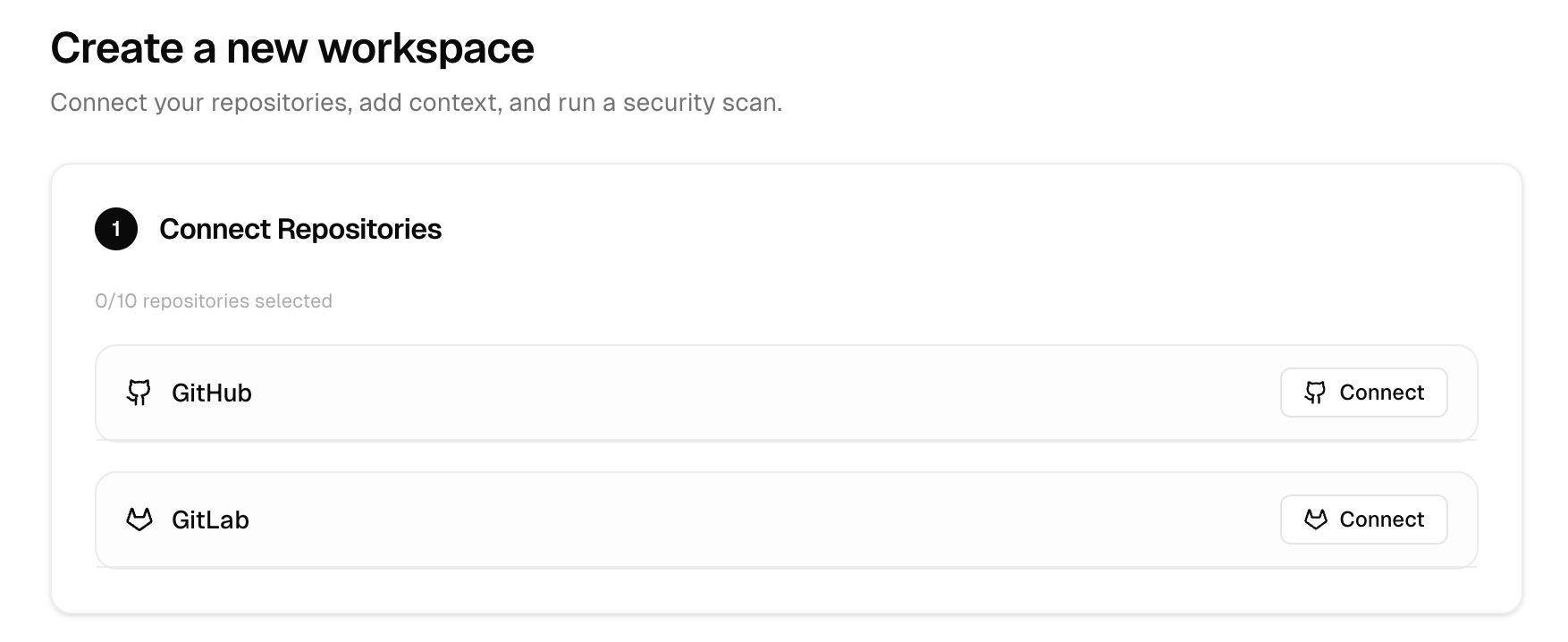 *Workspace setup - connect options*