> ## Documentation Index
> Fetch the complete documentation index at: https://docs.cantina.xyz/llms.txt
> Use this file to discover all available pages before exploring further.
# JumpCloud
> Connect JumpCloud to Clarion to ingest directory and identity events via Insights Rule webhooks and enable agent-driven investigation.
This guide explains how to connect JumpCloud to Clarion. Once configured, Clarion receives directory and identity events from JumpCloud Insights Rules through a webhook notification channel and can use a JumpCloud service account to investigate and respond to alerts.
> **Estimated time:** 10-15 minutes. You will need **JumpCloud Admin** access and access to the Clarion workspace where you want to connect JumpCloud.
## Prerequisites
* Access to a JumpCloud organization with permission to manage Notification Channels, Insights Rules, and Service Accounts
* Access to the Clarion workspace where you want to configure the JumpCloud integration
## Create a webhook notification channel in JumpCloud
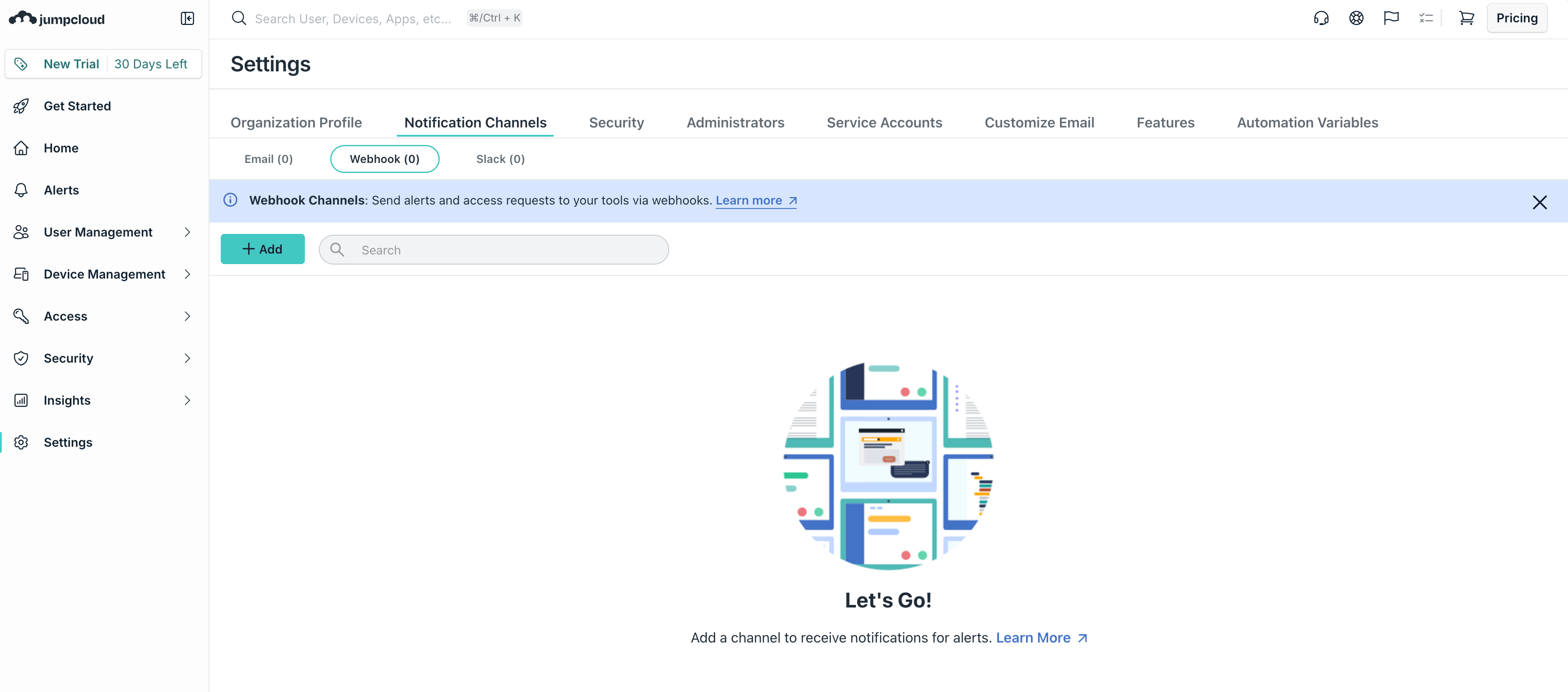
1. Sign in to the **JumpCloud Admin Portal**.
2. Open **Settings** and navigate to the **Notification Channels** tab.
3. Select **Webhook** and click to add a new channel.
 ## Get the webhook URL and secret from Clarion
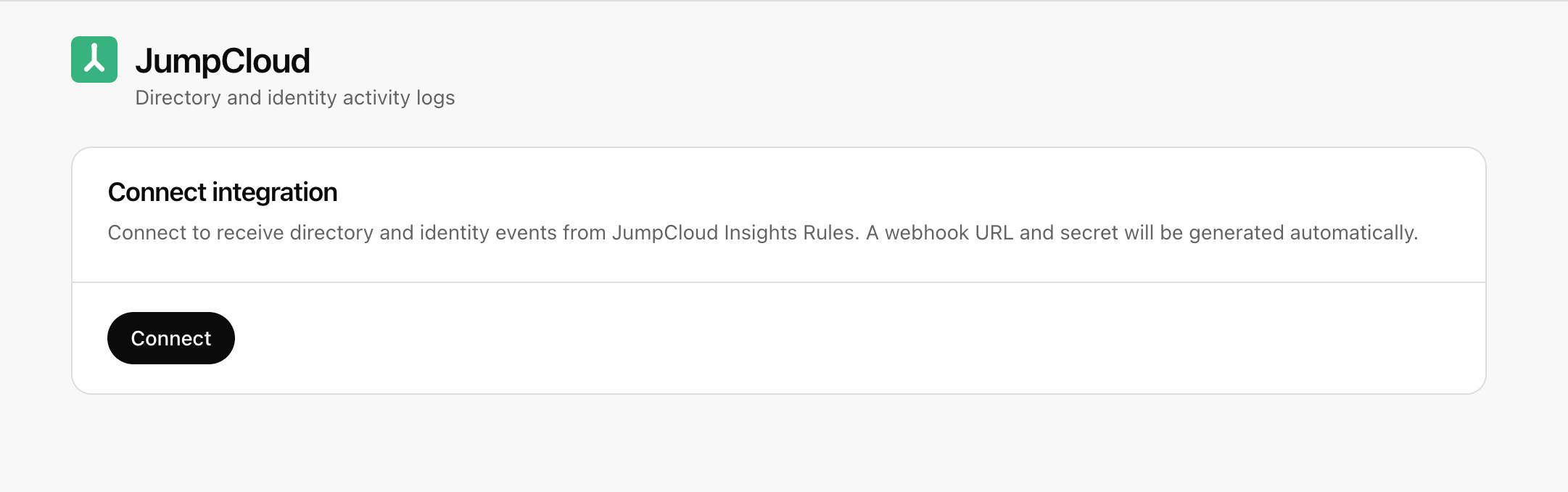
1. Open Clarion and go to **Integrations** > **JumpCloud**.
2. Click **Connect** to generate a webhook URL and secret for this workspace.
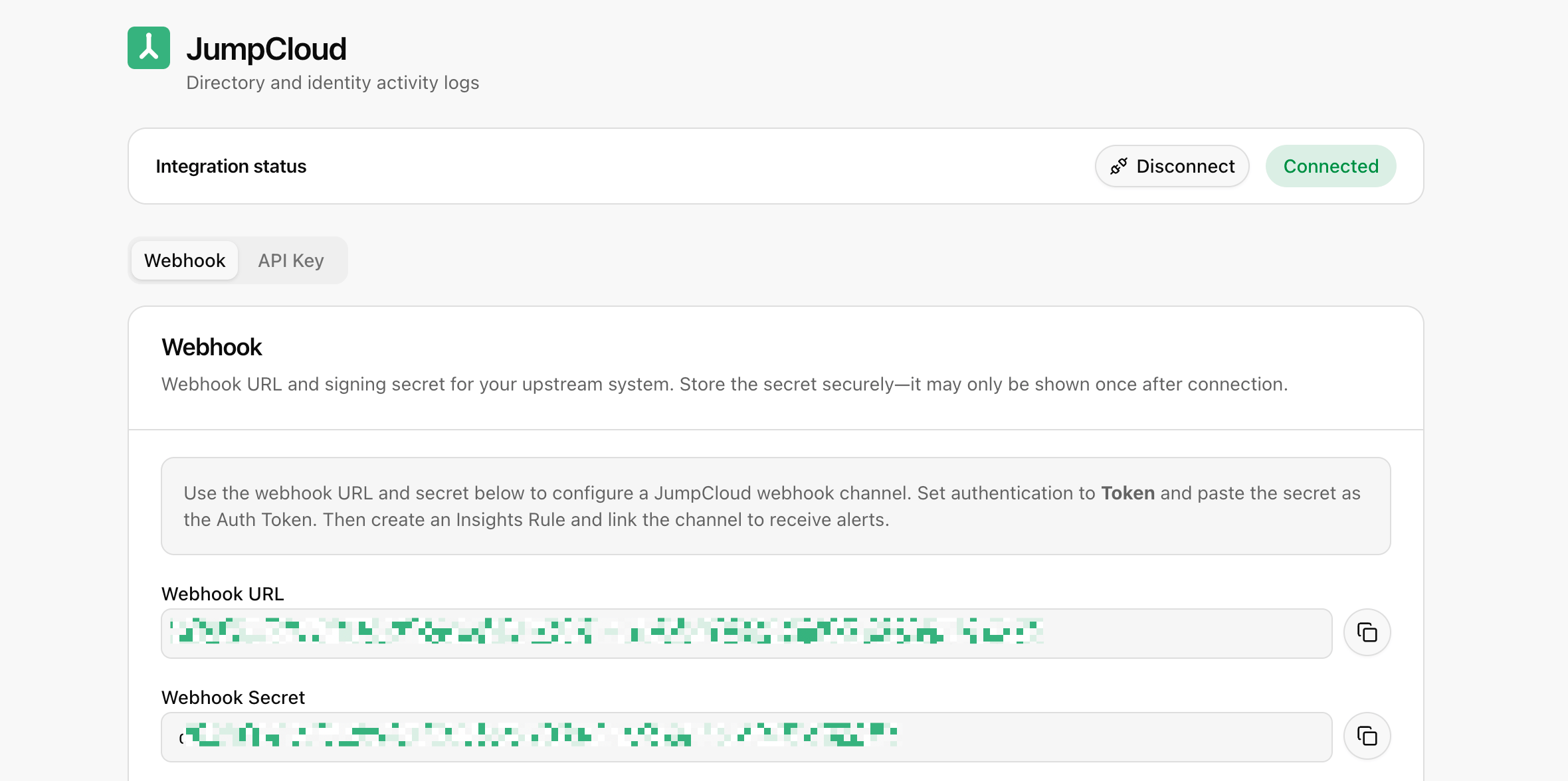
3. Copy the **Webhook URL** and **Secret**. You will paste these into JumpCloud in the next step.
## Get the webhook URL and secret from Clarion
1. Open Clarion and go to **Integrations** > **JumpCloud**.
2. Click **Connect** to generate a webhook URL and secret for this workspace.
3. Copy the **Webhook URL** and **Secret**. You will paste these into JumpCloud in the next step.
 ## Configure the webhook channel in JumpCloud
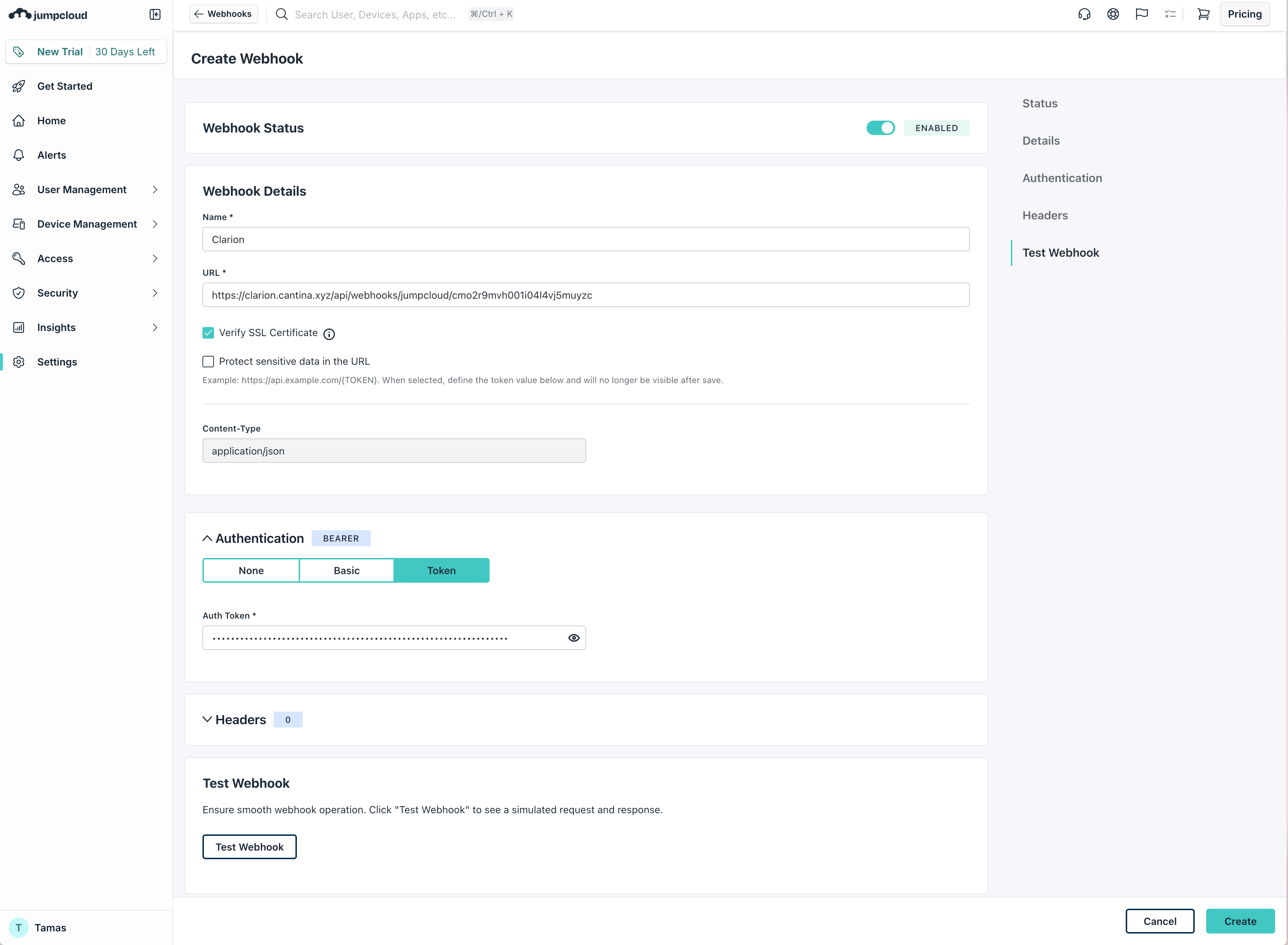
1. Return to the JumpCloud Notification Channel you started creating.
2. Enter a name for the channel, for example `Clarion`.
3. Paste the **Webhook URL** from Clarion into the URL field.
4. Set the authentication type to **Token** and paste the **Secret** from Clarion as the **Auth Token**.
5. You can use **Test Webhook** to send a sample payload to Clarion. An example payload looks like:
```json theme={null}
{
"type": "user_lockout",
"tags": [
{ "key": "user_id_123", "value": "user_123" },
{ "key": "event_type", "value": "lockout" }
],
"channels": {
"channel_object_ids": ["channel_456"]
},
"organization_object_id": "org_789"
}
```
1. When the test succeeds, save the webhook channel.
## Configure the webhook channel in JumpCloud
1. Return to the JumpCloud Notification Channel you started creating.
2. Enter a name for the channel, for example `Clarion`.
3. Paste the **Webhook URL** from Clarion into the URL field.
4. Set the authentication type to **Token** and paste the **Secret** from Clarion as the **Auth Token**.
5. You can use **Test Webhook** to send a sample payload to Clarion. An example payload looks like:
```json theme={null}
{
"type": "user_lockout",
"tags": [
{ "key": "user_id_123", "value": "user_123" },
{ "key": "event_type", "value": "lockout" }
],
"channels": {
"channel_object_ids": ["channel_456"]
},
"organization_object_id": "org_789"
}
```
1. When the test succeeds, save the webhook channel.
 ## Link the channel to Insights Rules
For each Insights Rule you want to forward to Clarion:
1. Open the rule in JumpCloud.
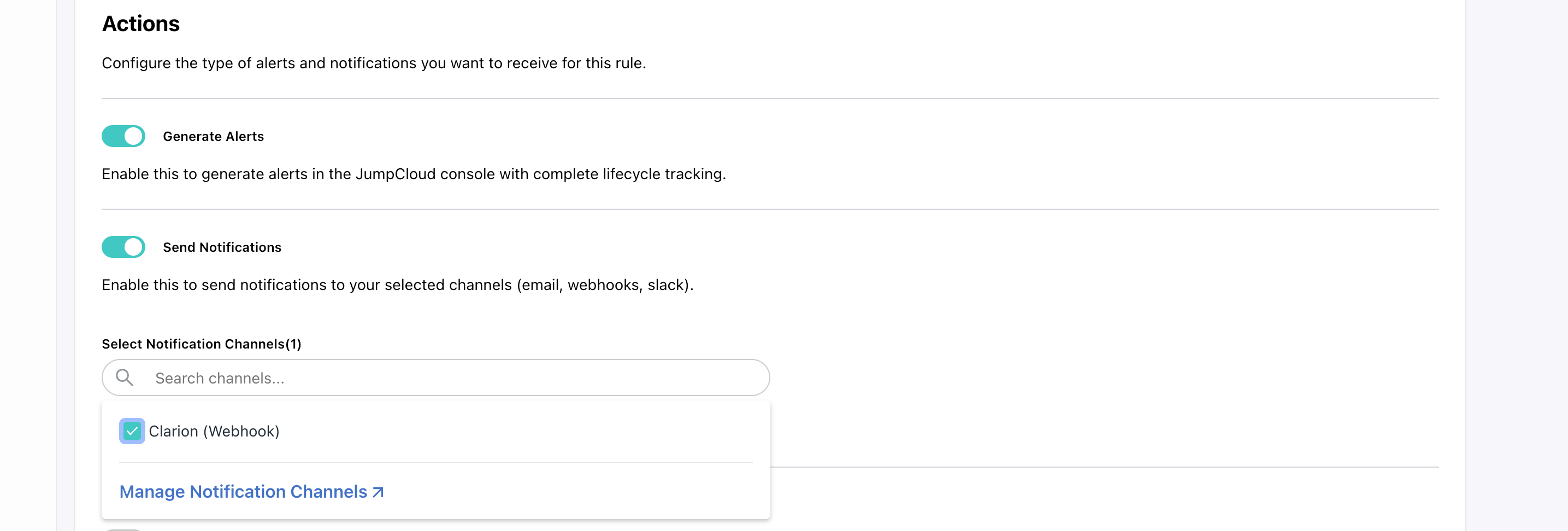
2. Under **Actions**, add the **Clarion** webhook channel as a notification channel.
3. Click **Save**.
Clarion now receives alerts from the rules you linked to the Clarion webhook channel.
## Link the channel to Insights Rules
For each Insights Rule you want to forward to Clarion:
1. Open the rule in JumpCloud.
2. Under **Actions**, add the **Clarion** webhook channel as a notification channel.
3. Click **Save**.
Clarion now receives alerts from the rules you linked to the Clarion webhook channel.
 ## Create a JumpCloud service account for agent tools
Connecting a JumpCloud service account lets Clarion agents call the JumpCloud API to investigate alerts and, optionally, remediate incidents.
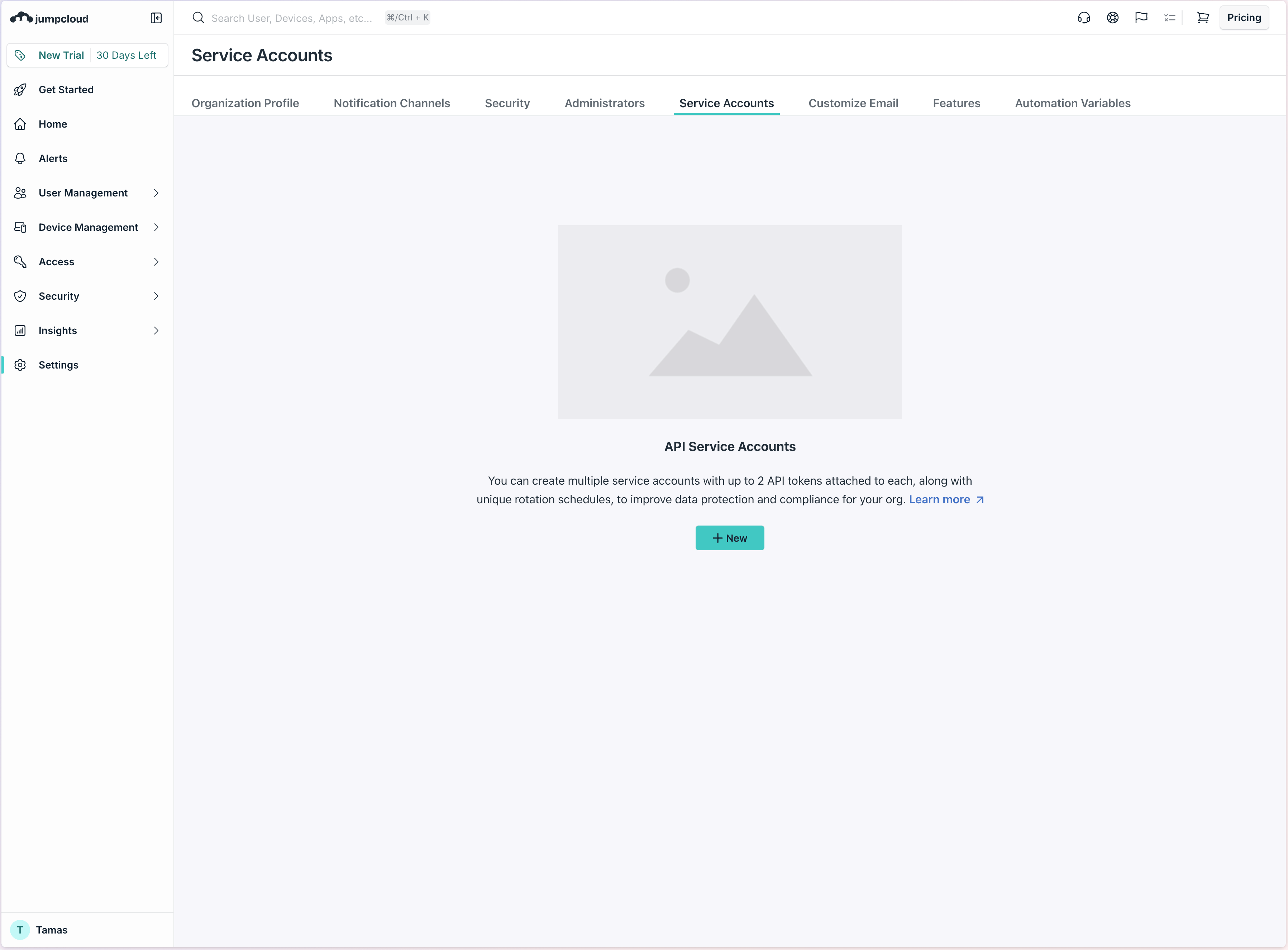
1. In the JumpCloud Admin Portal, open **Settings** and select the **Service Accounts** tab.
2. Click **Create a new service account**.
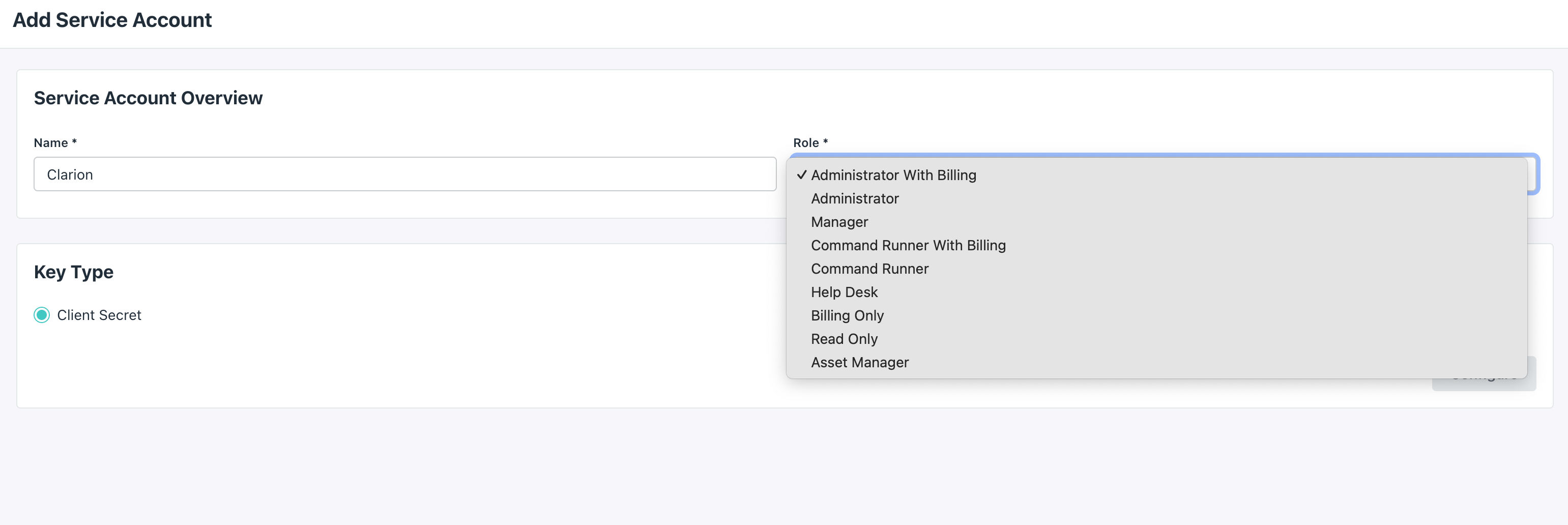
3. Name the service account `Clarion` and select a role that matches the access you want Clarion to have. To allow Clarion to remediate incidents, select the **Manager** role.
4. Set the **Secret Lifetime** to **365 days**.
5. Copy the **Client ID** and **Client Secret** shown. The secret is only displayed once.
## Create a JumpCloud service account for agent tools
Connecting a JumpCloud service account lets Clarion agents call the JumpCloud API to investigate alerts and, optionally, remediate incidents.
1. In the JumpCloud Admin Portal, open **Settings** and select the **Service Accounts** tab.
2. Click **Create a new service account**.
3. Name the service account `Clarion` and select a role that matches the access you want Clarion to have. To allow Clarion to remediate incidents, select the **Manager** role.
4. Set the **Secret Lifetime** to **365 days**.
5. Copy the **Client ID** and **Client Secret** shown. The secret is only displayed once.
 ## Connect the service account in Clarion
1. In Clarion, open again the **Integrations** > **JumpCloud** integration page.
2. Paste the **Client ID** and **Client Secret** from JumpCloud.
3. Click **Save Service Account**.
Clarion can now use the JumpCloud API to support investigation and response actions on incoming alerts.
## Troubleshooting
### Test webhook returns an authentication error
* Confirm the authentication type is set to **Token** in the JumpCloud webhook channel
* Confirm the **Auth Token** matches the secret shown in Clarion exactly, with no leading or trailing whitespace
* If the secret has been rotated, reconnect the integration in Clarion to generate a new secret and update the JumpCloud channel
### Alerts are not arriving in Clarion
* Confirm the Clarion webhook channel is attached to each Insights Rule you want to forward
* Confirm the rule is enabled and has recently matched events in JumpCloud
* Re-run **Test Webhook** from JumpCloud to verify the channel still reaches Clarion
### Service account credentials are rejected
* Confirm the service account is active in the JumpCloud Admin Portal
* Confirm the role assigned to the service account includes the permissions required for the actions you want Clarion to perform
* If the client secret is lost or expired, generate a new secret in JumpCloud and save the new **Client ID** and **Client Secret** in Clarion
## Connect the service account in Clarion
1. In Clarion, open again the **Integrations** > **JumpCloud** integration page.
2. Paste the **Client ID** and **Client Secret** from JumpCloud.
3. Click **Save Service Account**.
Clarion can now use the JumpCloud API to support investigation and response actions on incoming alerts.
## Troubleshooting
### Test webhook returns an authentication error
* Confirm the authentication type is set to **Token** in the JumpCloud webhook channel
* Confirm the **Auth Token** matches the secret shown in Clarion exactly, with no leading or trailing whitespace
* If the secret has been rotated, reconnect the integration in Clarion to generate a new secret and update the JumpCloud channel
### Alerts are not arriving in Clarion
* Confirm the Clarion webhook channel is attached to each Insights Rule you want to forward
* Confirm the rule is enabled and has recently matched events in JumpCloud
* Re-run **Test Webhook** from JumpCloud to verify the channel still reaches Clarion
### Service account credentials are rejected
* Confirm the service account is active in the JumpCloud Admin Portal
* Confirm the role assigned to the service account includes the permissions required for the actions you want Clarion to perform
* If the client secret is lost or expired, generate a new secret in JumpCloud and save the new **Client ID** and **Client Secret** in Clarion