> ## Documentation Index
> Fetch the complete documentation index at: https://docs.cantina.xyz/llms.txt
> Use this file to discover all available pages before exploring further.
# Session Settings
Learn how to configure session expiration and refresh settings for your Cantina organization.
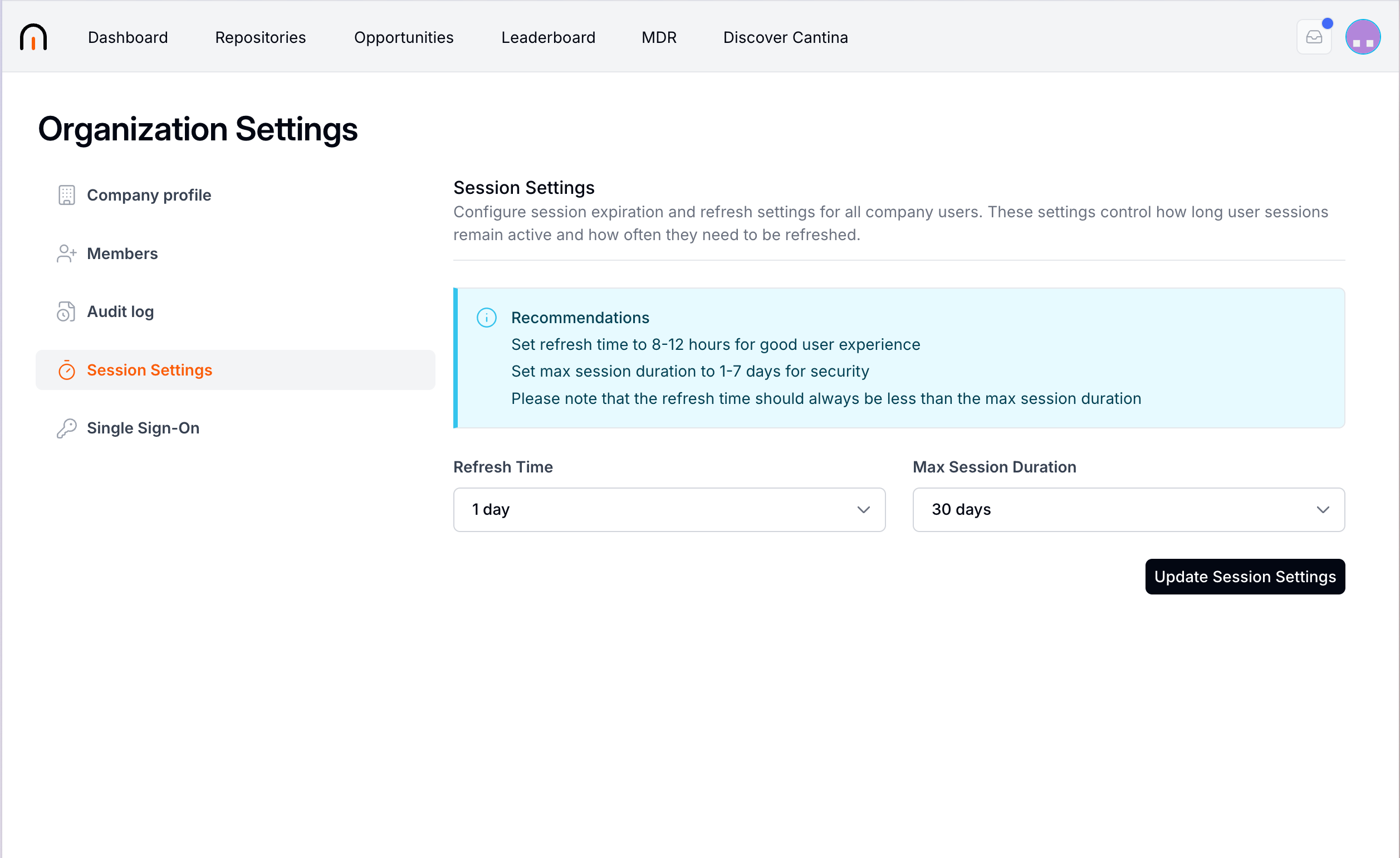
Session settings apply to **all company users** and control how long user sessions remain active and how often they need to be refreshed.
## Where to Configure
To configure these settings, navigate to:
**Organization Settings → Session Settings**
 ## Available Settings
* **Refresh Time** — How often user sessions need to be refreshed.
* **Max Session Duration** — The maximum length of time a user session can remain active before the user must sign in again.
## Update Session Settings
1. Select a **Refresh Time** from the dropdown.
2. Select a **Max Session Duration** from the dropdown.
3. Select **Update Session Settings** to apply the changes.
## Recommendations
* Set the refresh time to **8–12 hours** for a good user experience.
* Set the max session duration to **1–7 days** for security.
The refresh time should always be less than the max session duration.
## Managing Your Own Sessions
In addition to the organization-wide settings, each user can view and manage their own active login sessions. Navigate to:
**User Profile → Settings → Account security**
## Available Settings
* **Refresh Time** — How often user sessions need to be refreshed.
* **Max Session Duration** — The maximum length of time a user session can remain active before the user must sign in again.
## Update Session Settings
1. Select a **Refresh Time** from the dropdown.
2. Select a **Max Session Duration** from the dropdown.
3. Select **Update Session Settings** to apply the changes.
## Recommendations
* Set the refresh time to **8–12 hours** for a good user experience.
* Set the max session duration to **1–7 days** for security.
The refresh time should always be less than the max session duration.
## Managing Your Own Sessions
In addition to the organization-wide settings, each user can view and manage their own active login sessions. Navigate to:
**User Profile → Settings → Account security**
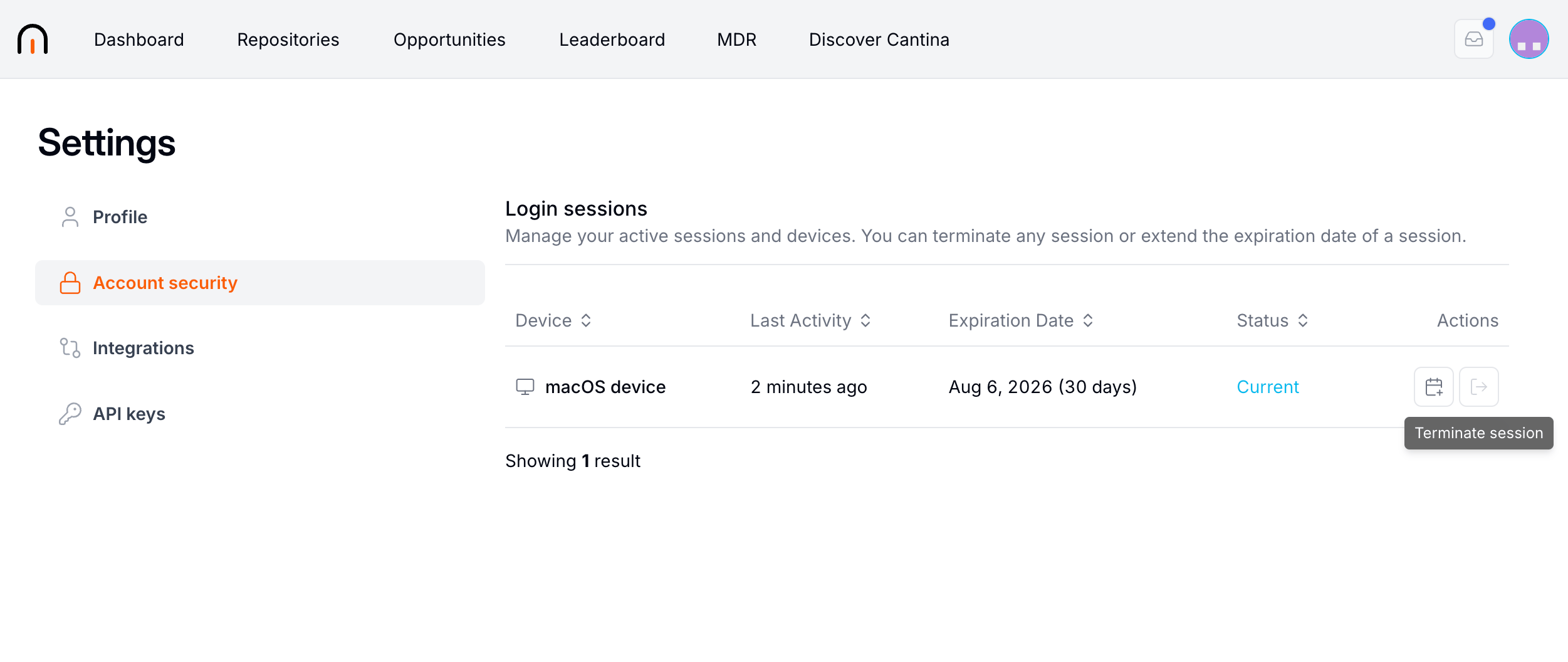 The **Login sessions** list shows every active session and device, including the last activity, expiration date, and status. From here you can:
* **Terminate a session** — Immediately sign out that device.
* **Extend a session** — Extend the expiration date of a session.
The **Login sessions** list shows every active session and device, including the last activity, expiration date, and status. From here you can:
* **Terminate a session** — Immediately sign out that device.
* **Extend a session** — Extend the expiration date of a session.