

Where to Configure
To configure these settings, navigate to: Organization Settings → Session Settings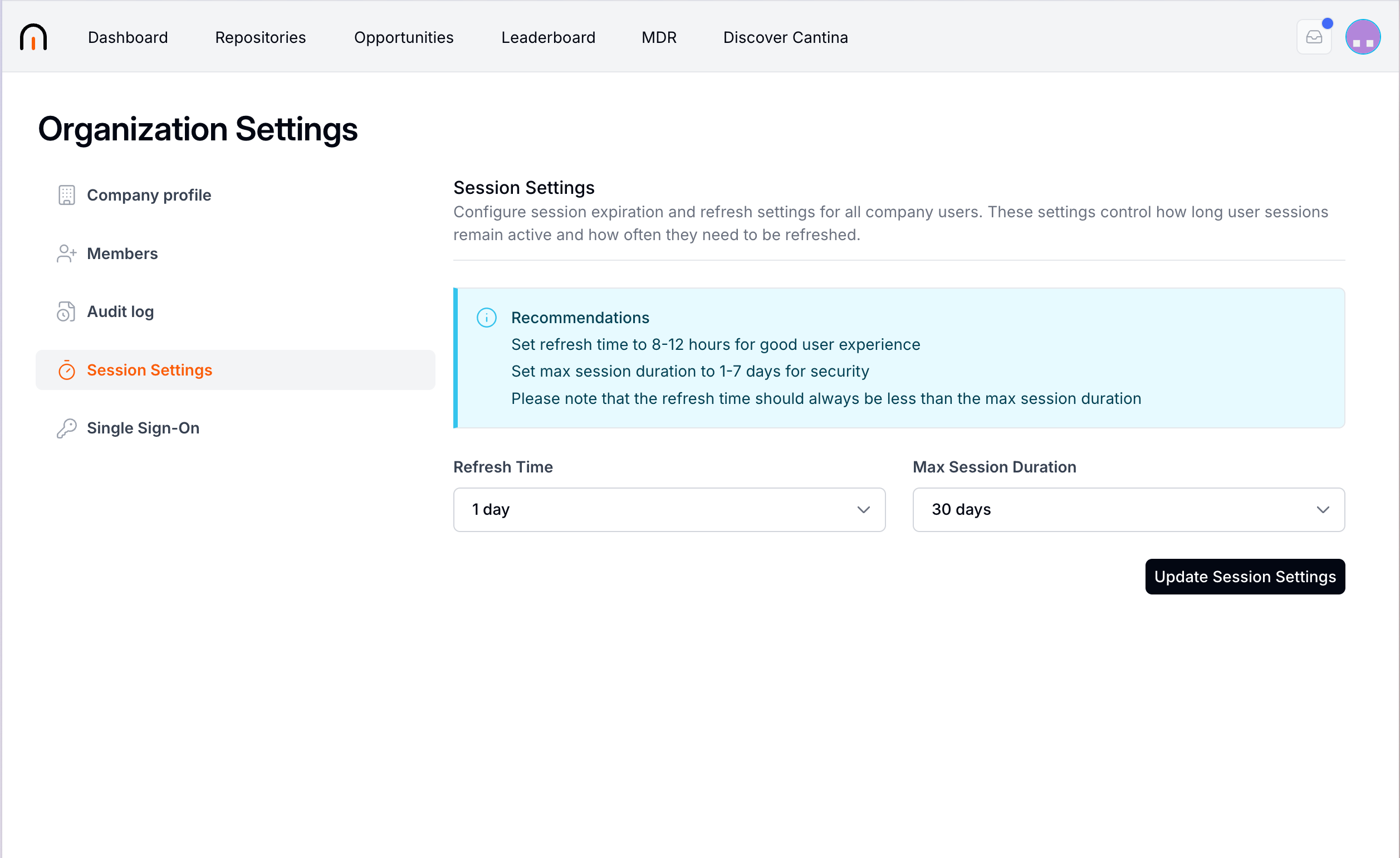
Available Settings
- Refresh Time — How often user sessions need to be refreshed.
- Max Session Duration — The maximum length of time a user session can remain active before the user must sign in again.
Update Session Settings
- Select a Refresh Time from the dropdown.
- Select a Max Session Duration from the dropdown.
- Select Update Session Settings to apply the changes.
Recommendations
- Set the refresh time to 8–12 hours for a good user experience.
- Set the max session duration to 1–7 days for security.
The refresh time should always be less than the max session duration.
Managing Your Own Sessions
In addition to the organization-wide settings, each user can view and manage their own active login sessions. Navigate to: User Profile → Settings → Account security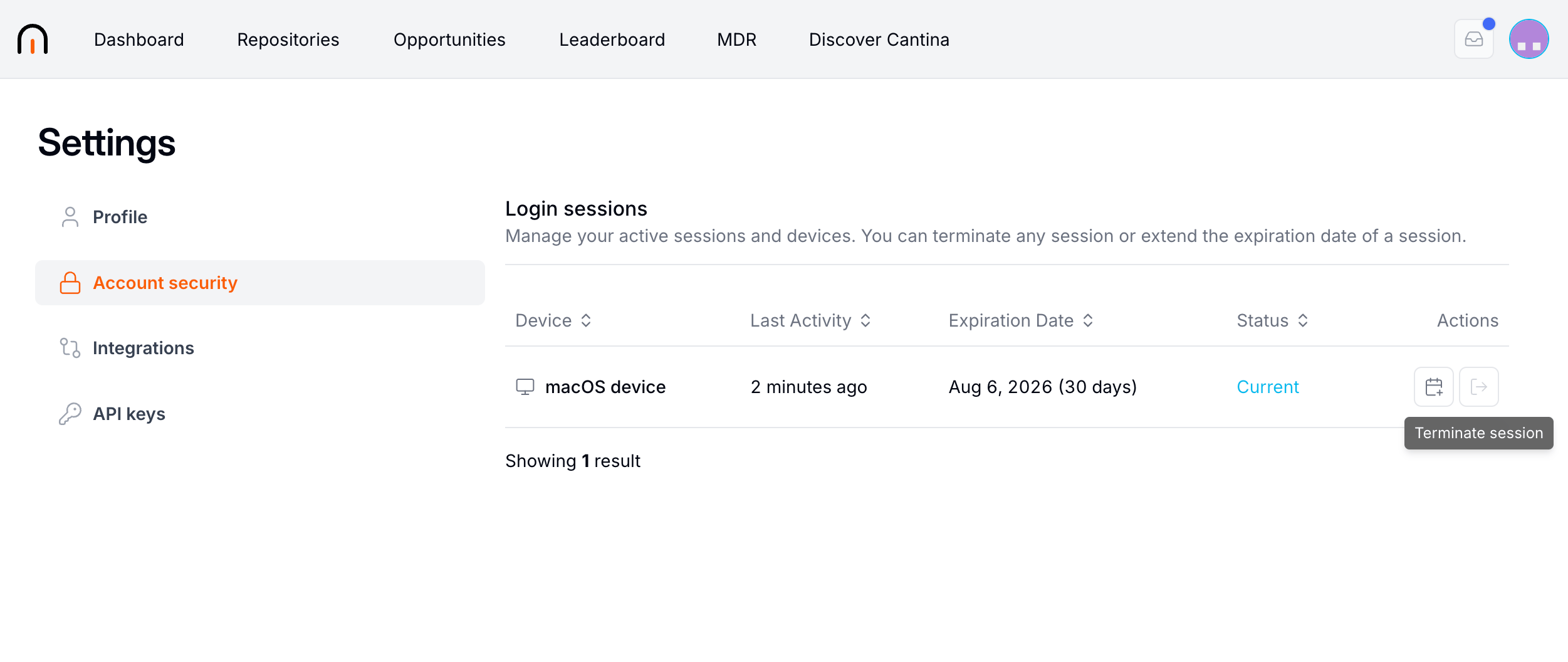
- Terminate a session — Immediately sign out that device.
- Extend a session — Extend the expiration date of a session.