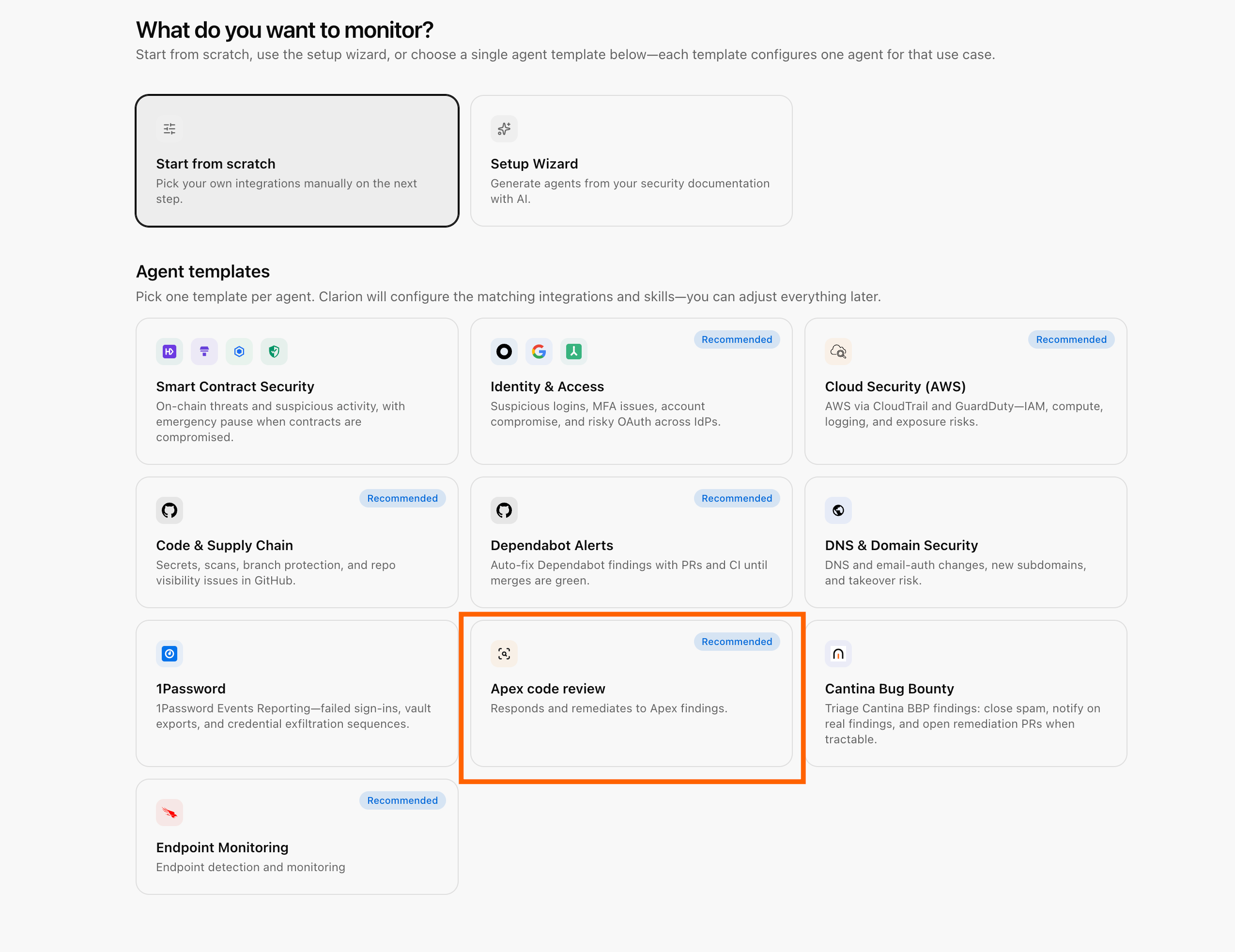
Estimated time: 2-5 minutes. You will need access to your Apex dashboard with permission to manage company settings, and a Clarion workspace.
Prerequisites
- Access to your Apex dashboard with permission to manage Company Settings
- A Clarion workspace with the Apex integration available
Step 1 - Enable the Apex integration in Clarion
- In Clarion, navigate to Integrations.
- Find the Apex card and click Connect to enable the integration.
Step 2 - Open Company Settings in Apex
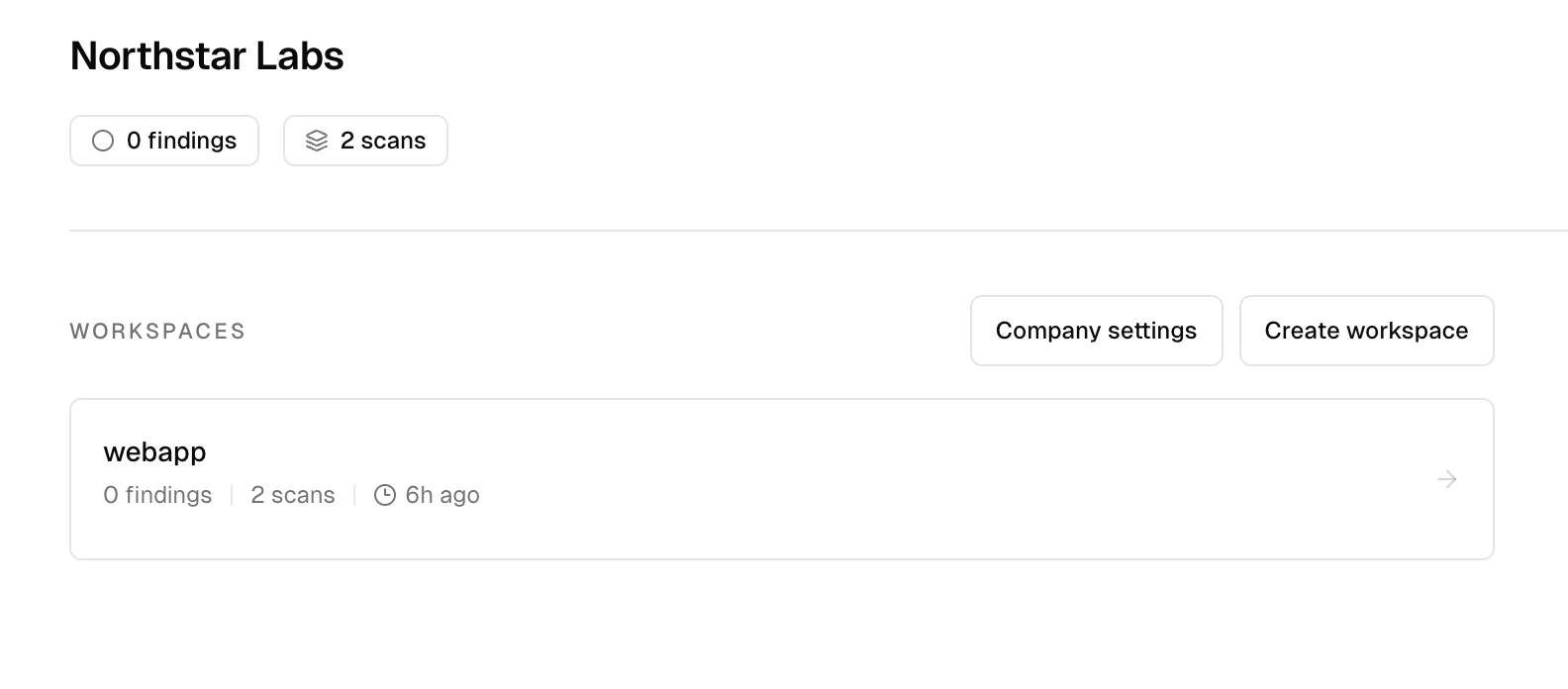
- Open your Apex dashboard.
- Go to Company Settings.
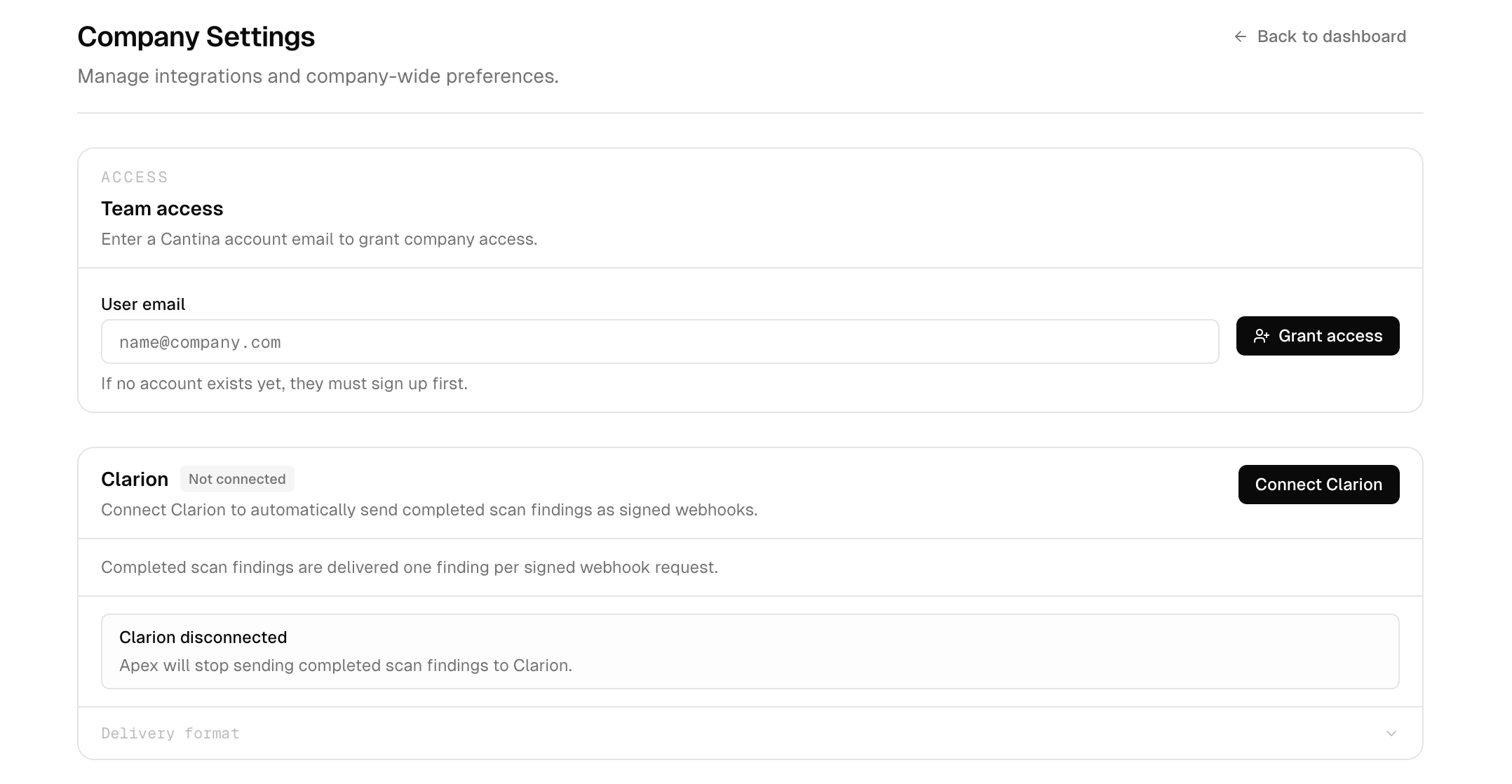
Step 3 - Connect Clarion from Apex
- In Company Settings, click Connect Clarion.
- Review the workspace shown in the connection screen and confirm it’s the correct Clarion workspace before connecting.
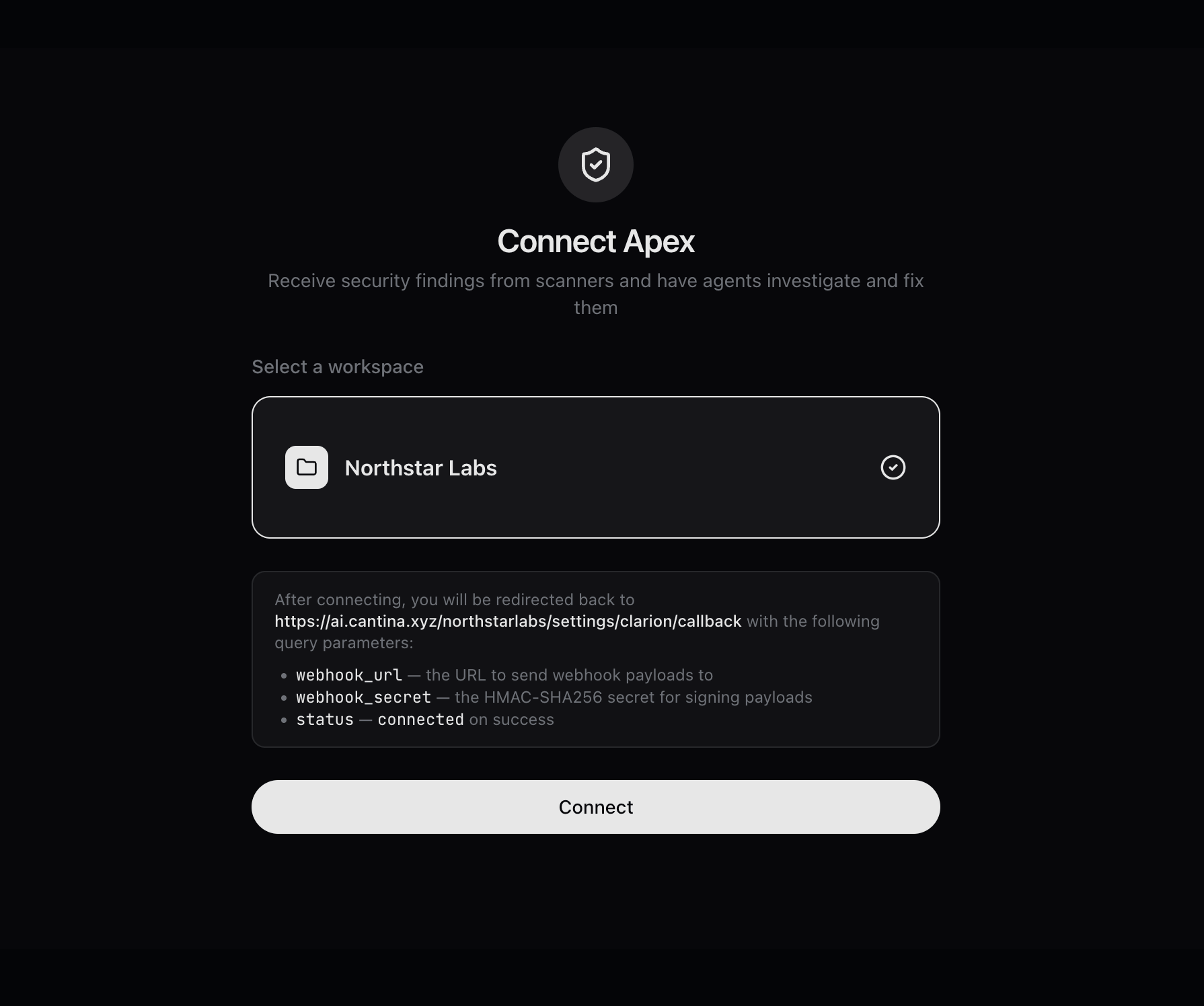
Step 4 - Add the Apex agent in Clarion
Once the connection is established:- In Clarion, go to Agents.
- Click Create Agent.
- Add the Apex agent so findings from Apex are picked up and triaged automatically.
Without the Apex agent enabled, findings will arrive in Clarion but won’t be triaged. Don’t skip this step.