

Prerequisites
- A Tenderly account with access to the project you want to monitor.
- Access to the Clarion dashboard.
Step 1 - Generate a Tenderly Access Token
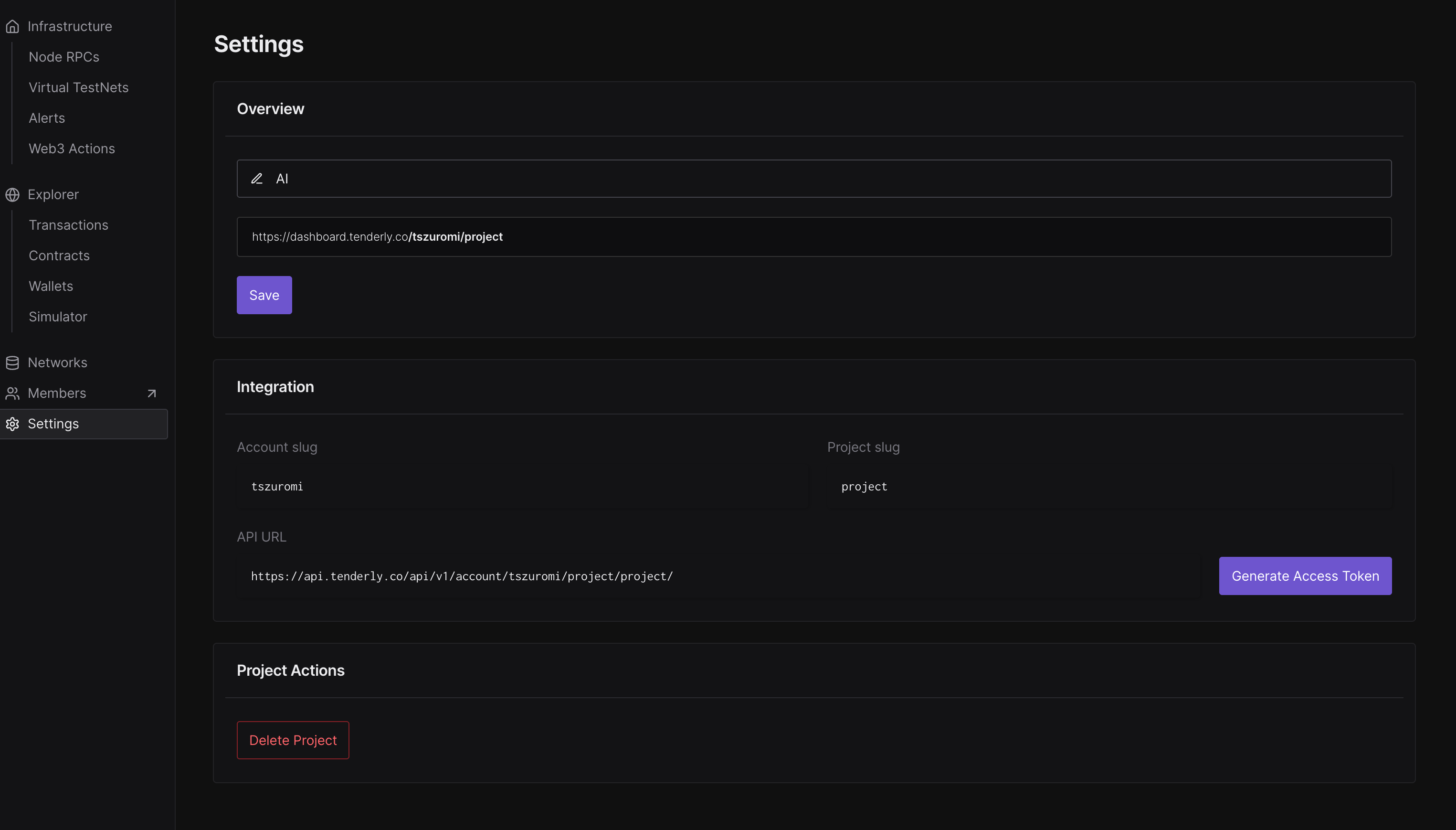
- Open Tenderly and go to Settings.
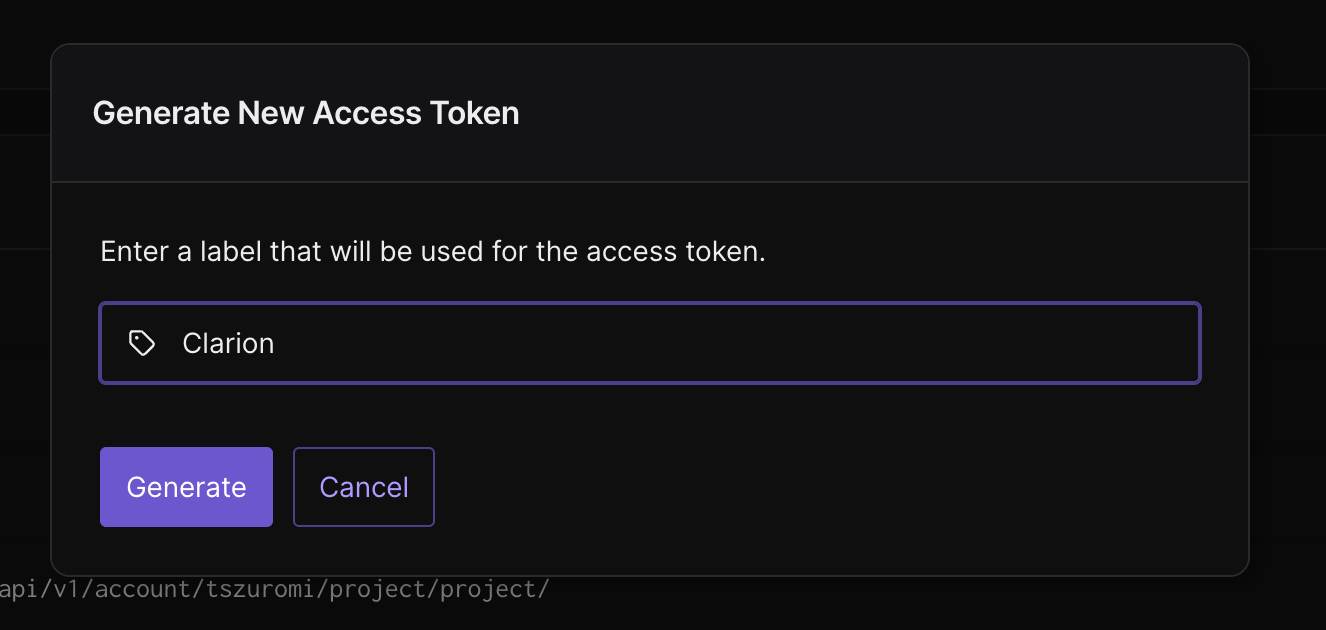
- Under settings, find the Integrations section and click Generate Access Token.
- Give the token a descriptive name (e.g.
Clarion). - Copy the access token immediately - it is only displayed once.
Store this token somewhere safe temporarily. You’ll need it in the next step and won’t be able to view it again.
Step 2 - Connect Tenderly to Clarion
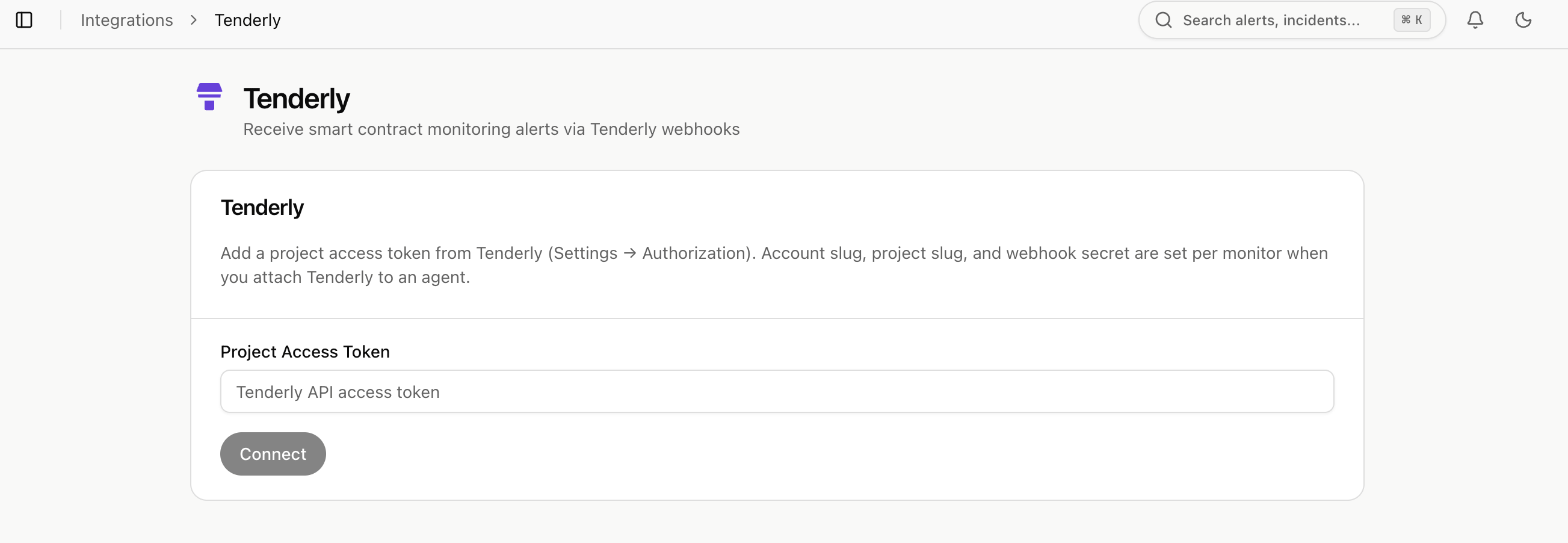
- In Clarion, navigate to Integrations and find the Tenderly integration.
- Paste the access token you copied in Step 1 and click Connect.
- Once connected, click Configure on the integration page.
Step 3 - Create a Monitor in Clarion
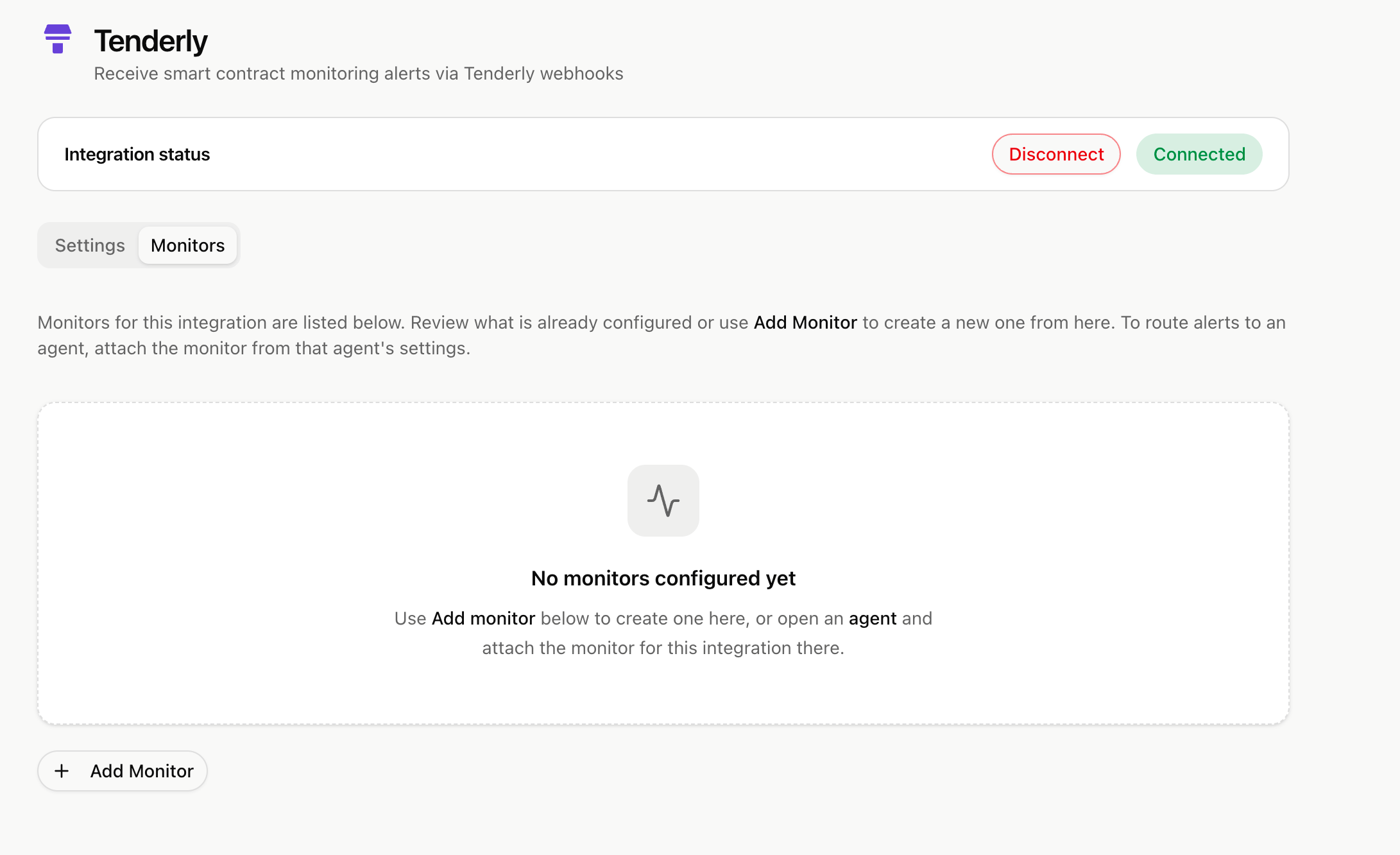
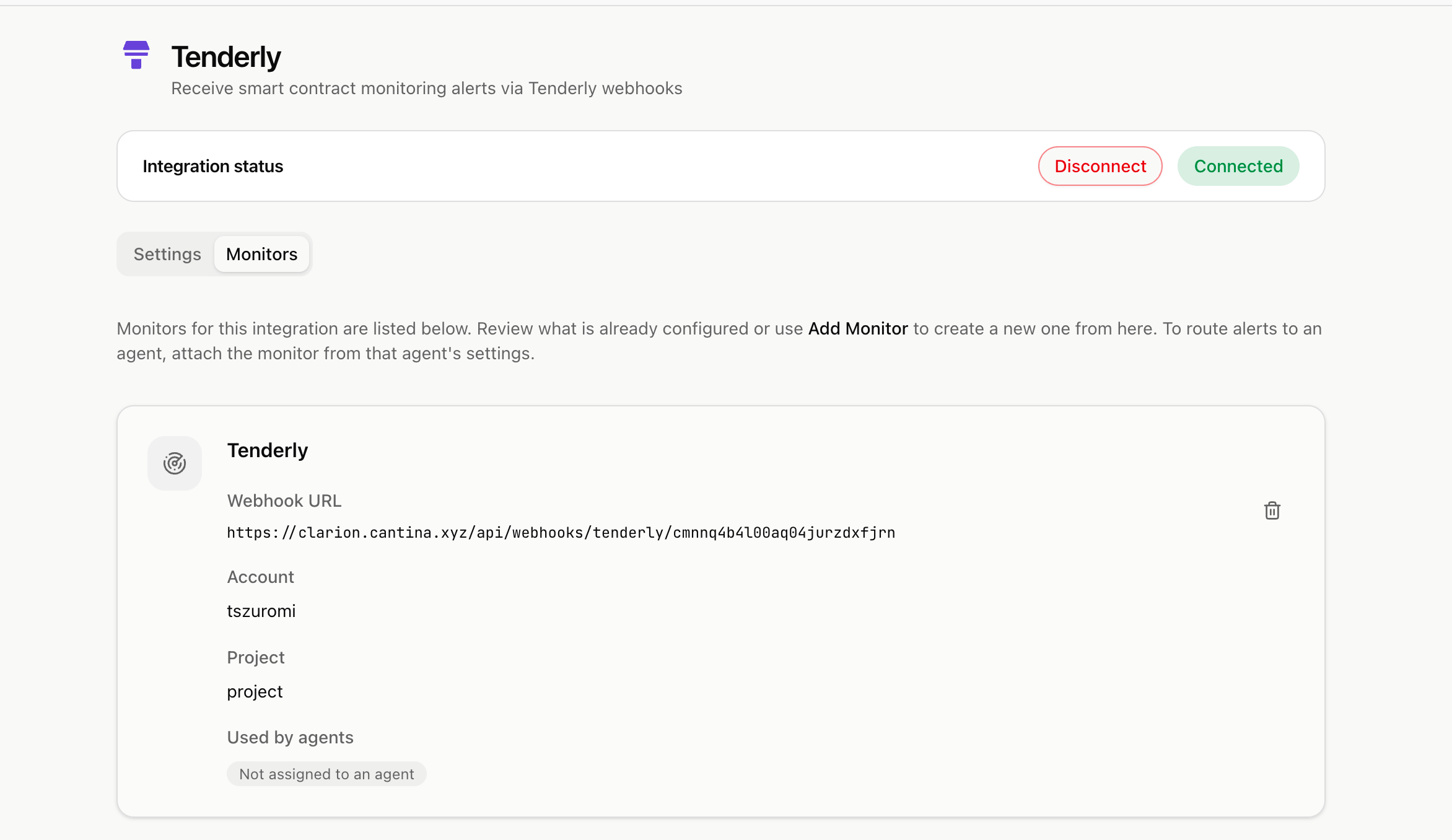
- Switch to the Monitor tab and click Add New Monitor.
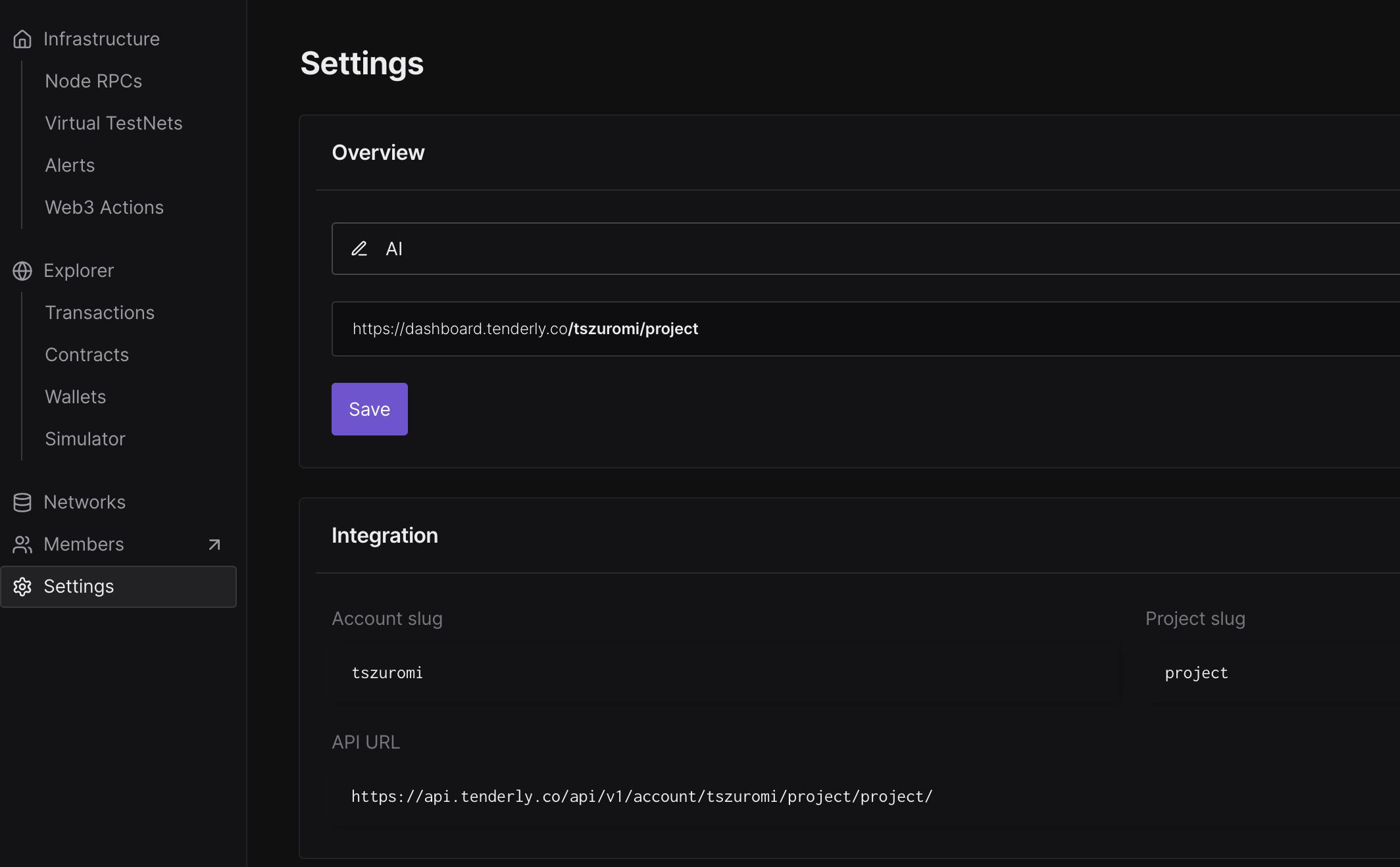
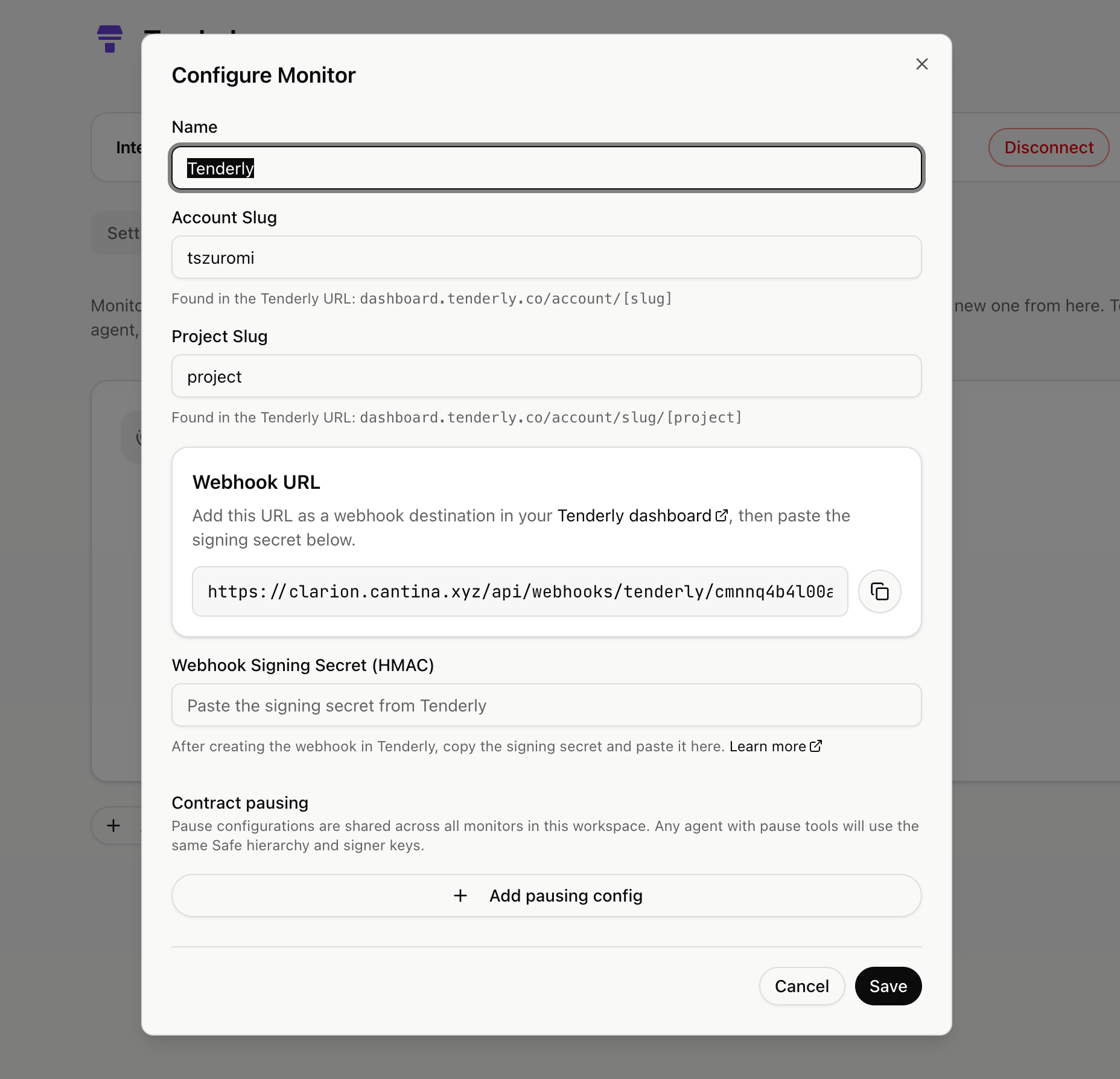
- Go back to Tenderly Settings and copy your Account Slug and Project Slug.
- Paste both slugs into the corresponding fields in Clarion.
- Leave the Webhook Secret field empty for now - you’ll fill it in after setting up the webhook in Tenderly.
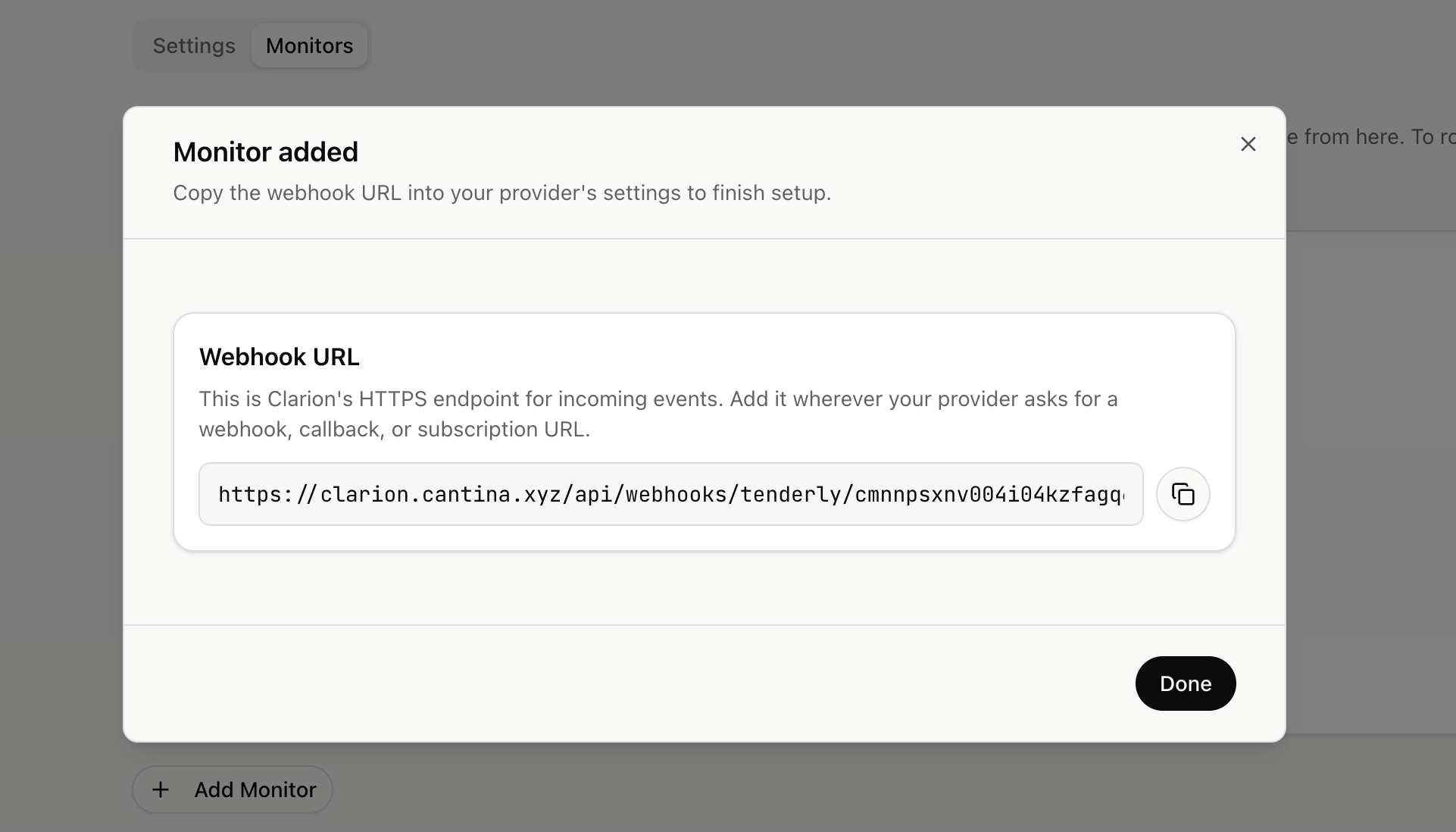
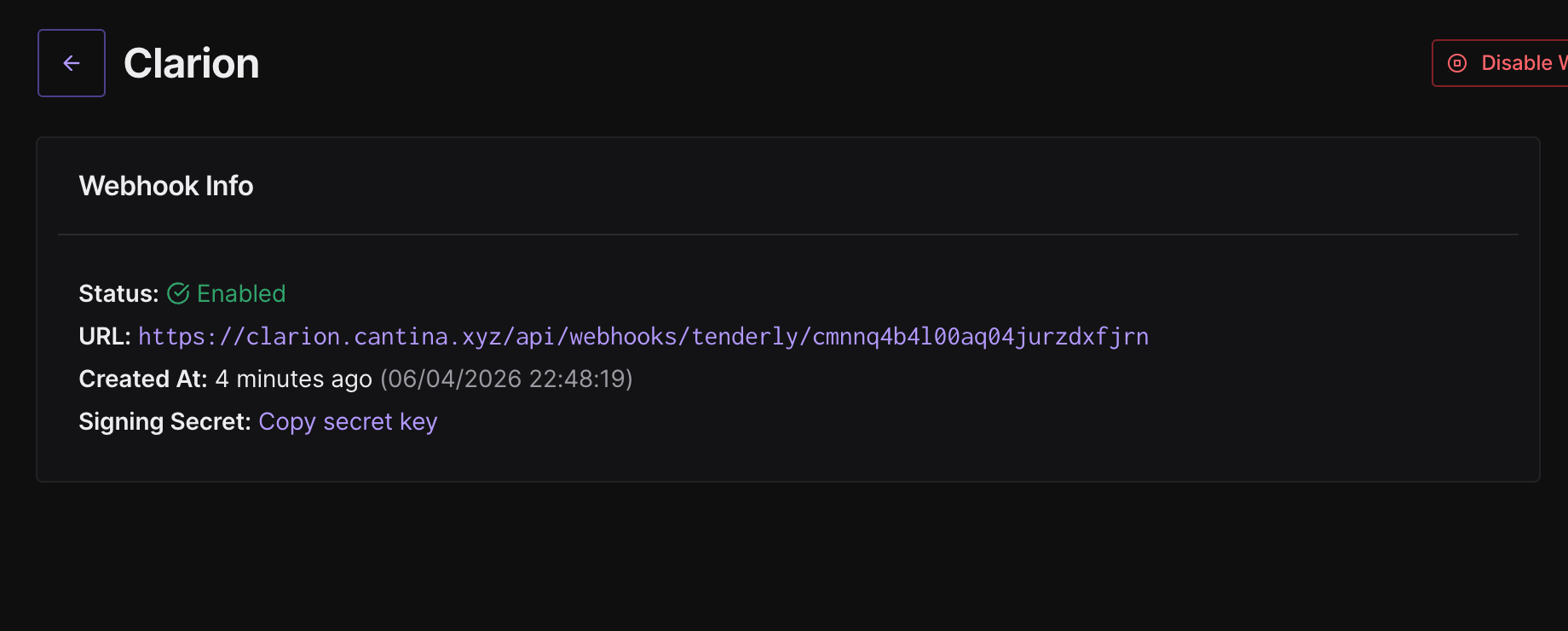
- Click Create Monitor. Clarion will generate a webhook URL that you’ll need in the next step.
Copy the generated webhook URL - you’ll use it to set up the destination in Tenderly.
Step 4 - Set Up the Webhook Destination in Tenderly
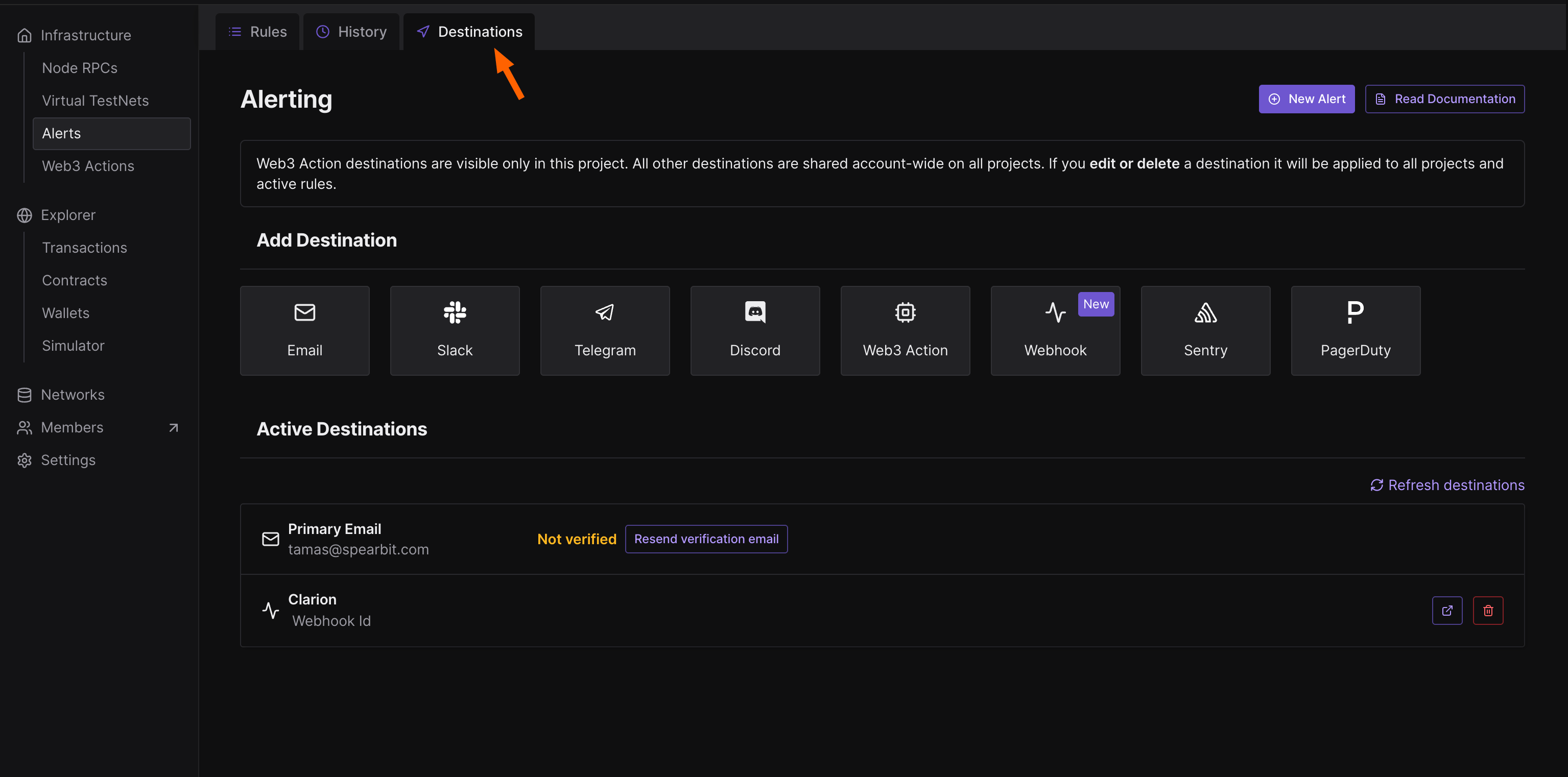
- In Tenderly, go to Alerts and switch to the Destinations tab.
- Select Webhook as the type under Add Destination.
- Paste the webhook URL generated by Clarion in Step 3.
- Save the destination. Once created, Tenderly will display a Signing Secret for this webhook.
- Copy the Signing Secret.
Step 5 - Add the Signing Secret to Clarion
- Go back to Clarion and open the monitor you created in Step 3.
- Click on the monitor.
- Paste the Signing Secret from Tenderly into the Webhook Signing Secret field.
- Save the monitor.
Your Tenderly monitor is now fully configured and secured with the signing secret.
Step 6 - Attach the Webhook to Your Alerts
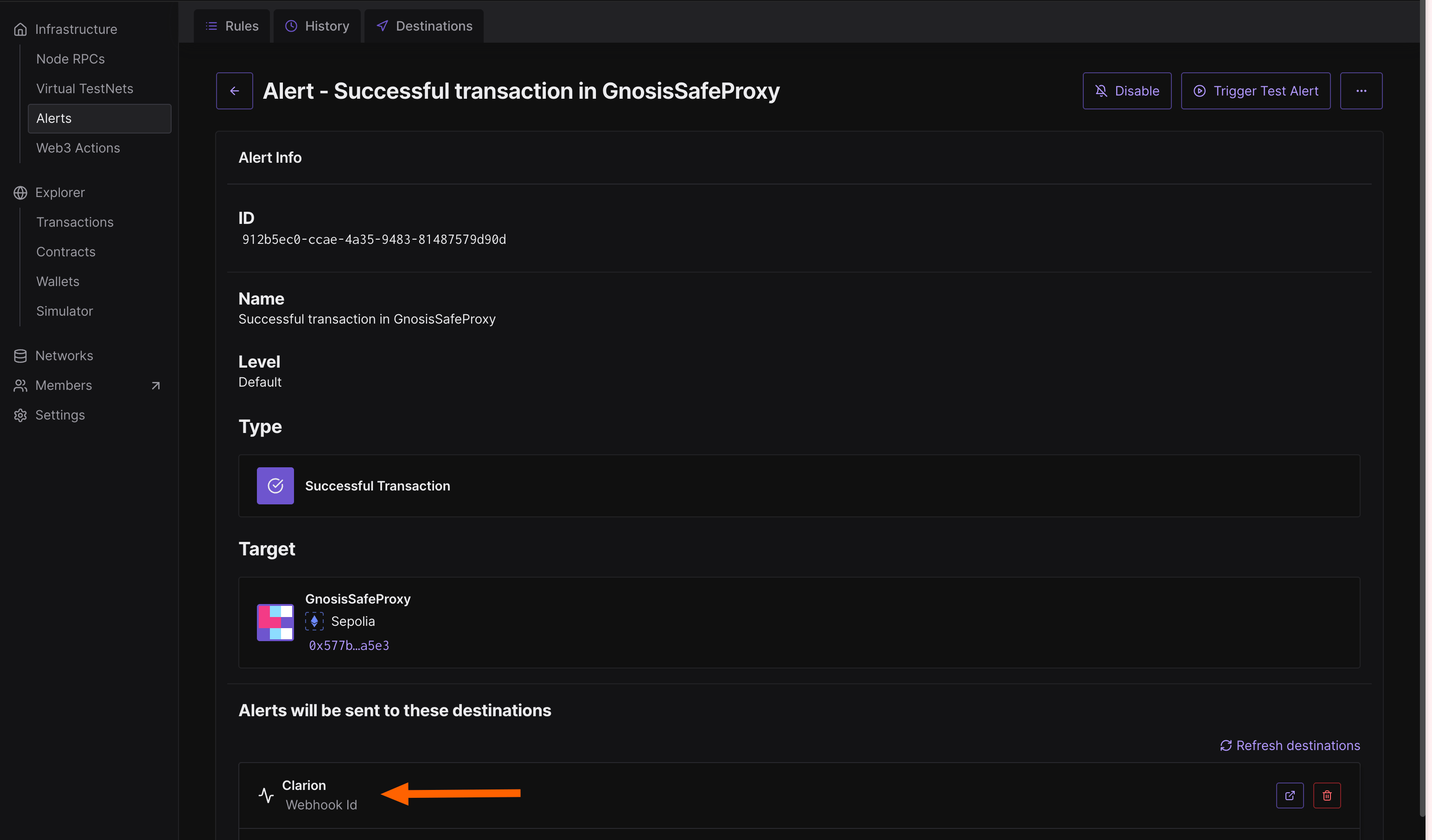
- In Tenderly, go to Alerts and review each alert rule that is defined.
- For every alert you want Clarion to receive, edit the rule and ensure the Clarion webhook is set as a destination.
You’re done! Clarion is now connected to Tenderly and will receive alerts for all configured monitors.